Hero · 1440

Feels familiar. Built for designing with agents.

A design app for Omarchy. You and your agent work on one canvas.

Install

Beta. Tell us what breaks →

  • Omarchy or Arch Linux
  • x86_64 · aarch64
  • Claude Code, Codex, OpenCode, Gemini CLI
  • Free beta
Canvas · 4 designs
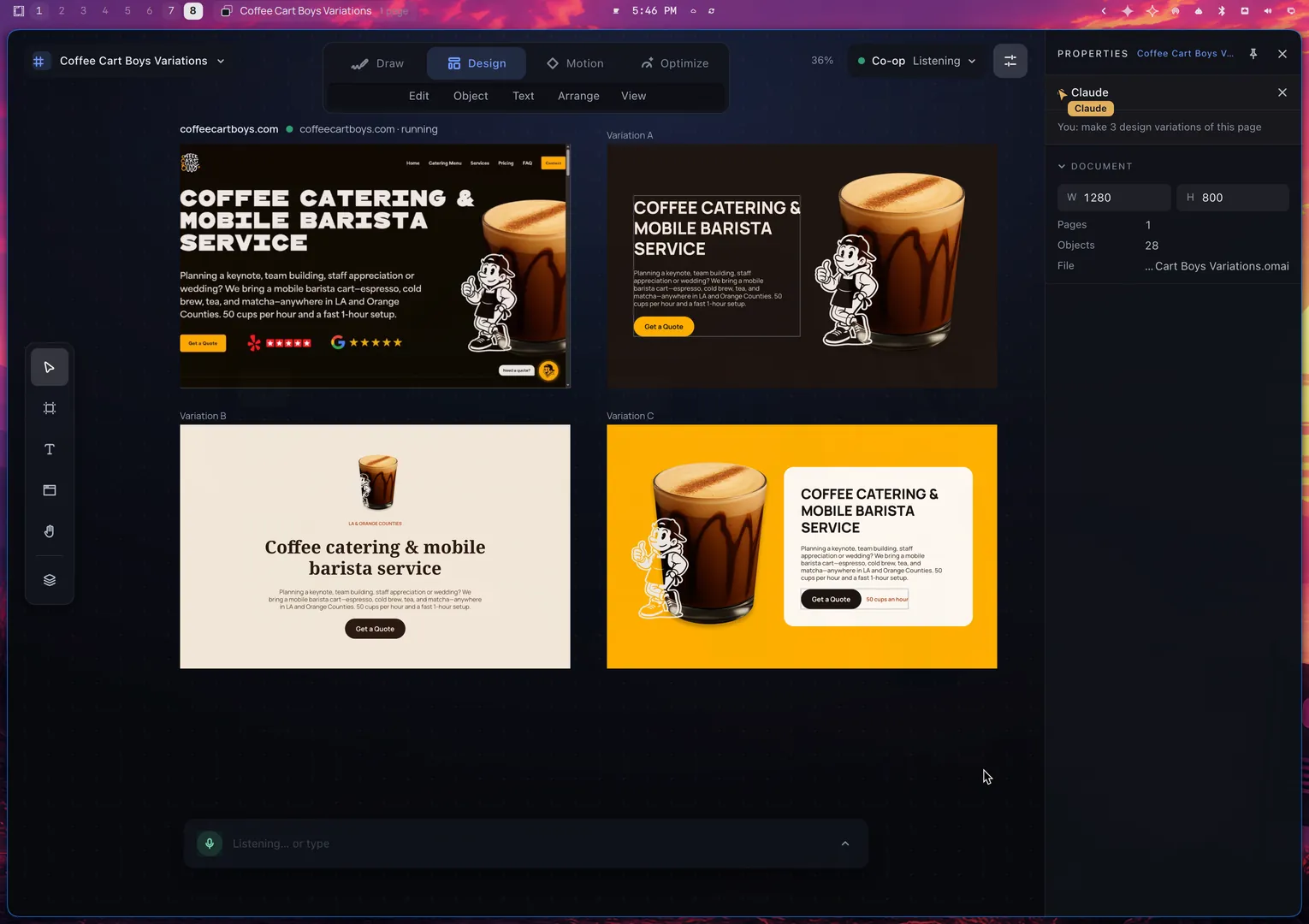
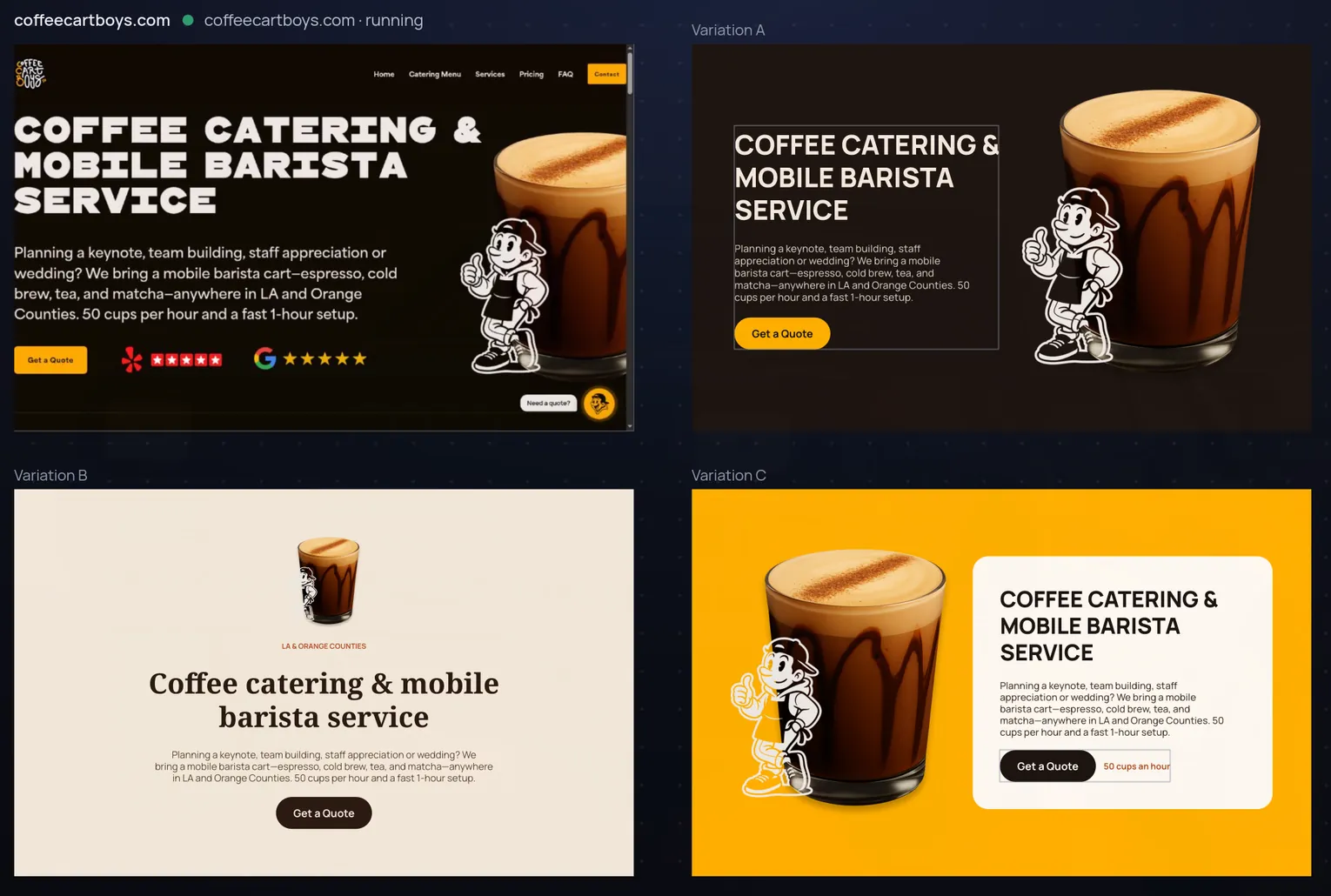
The Omastrator canvas with the live coffeecartboys.com site in a frame on the left and three design variations of the same page beside it.
Problem

Designing with AI takes too many steps

You usually connect MCP servers and edit settings before the agent can touch your file.

The usual way
Omastrator on Omarchy
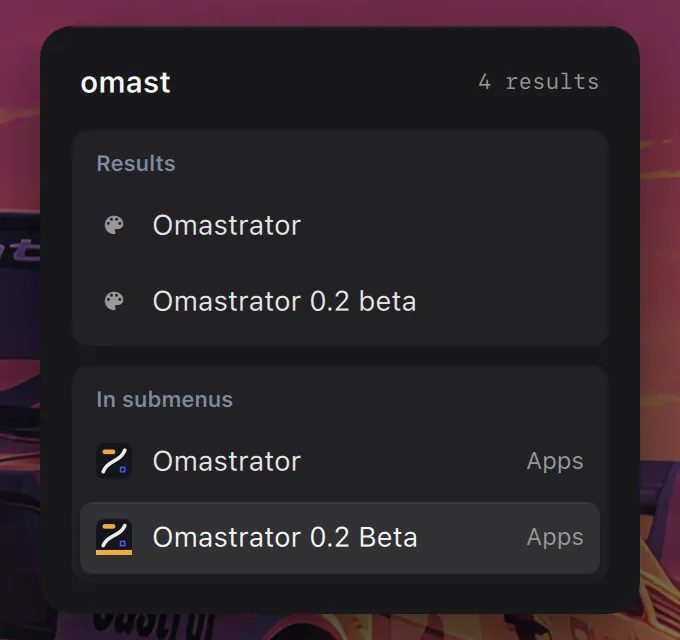
The Omarchy menu with Omastrator 0.2 Beta highlighted.
Open Omastrator
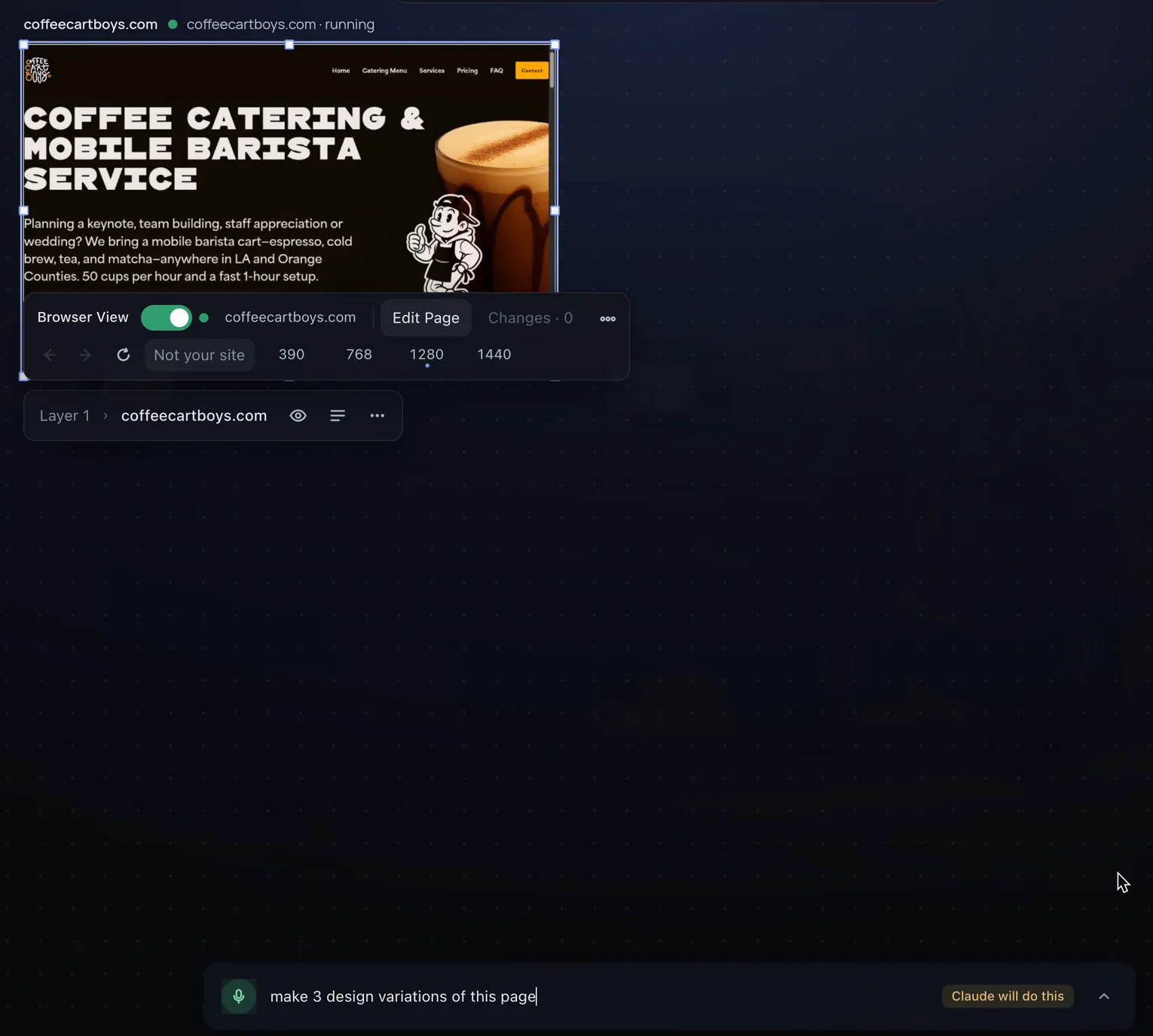
The command bar with the request: make 3 design variations of this page.
Press /
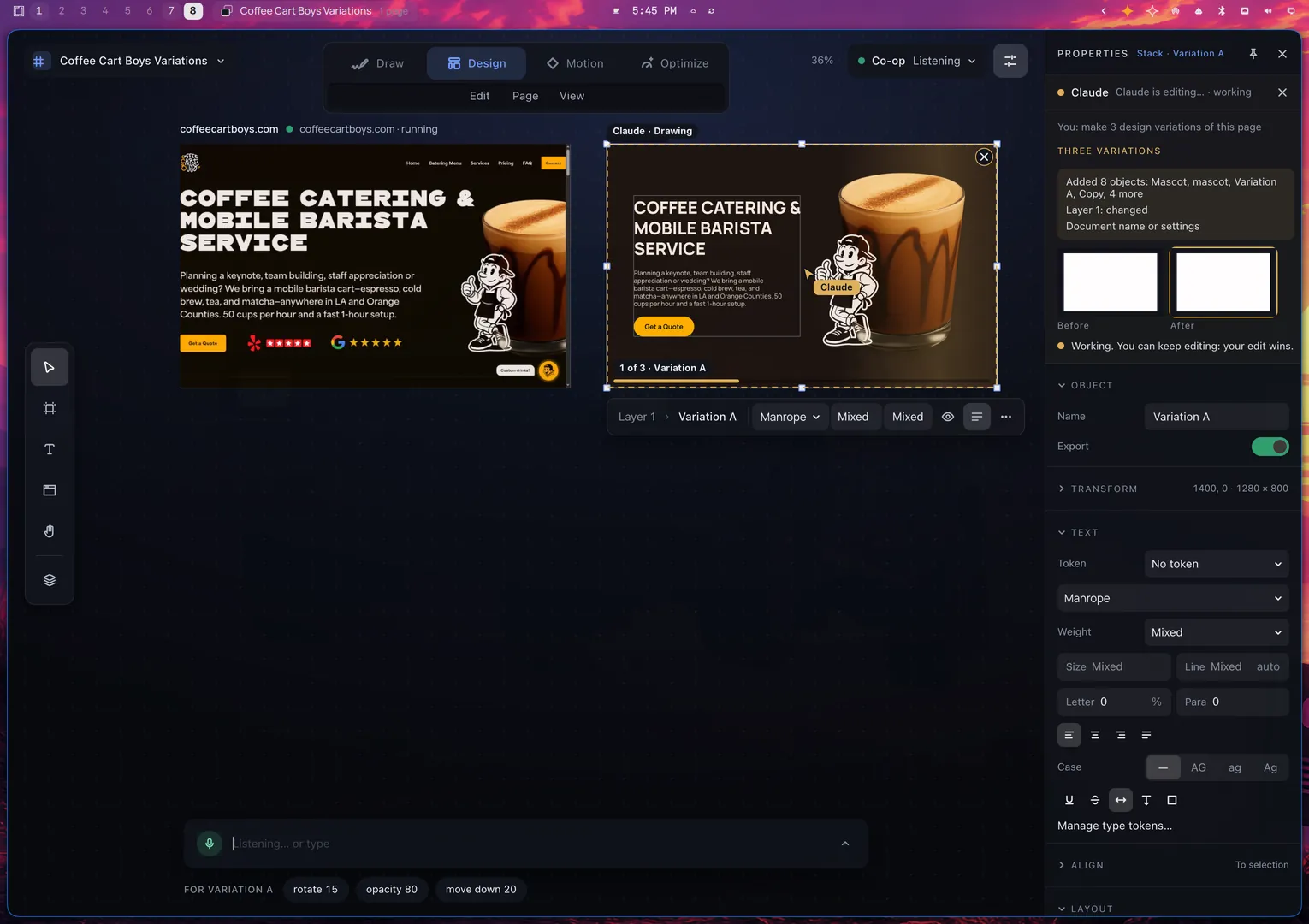
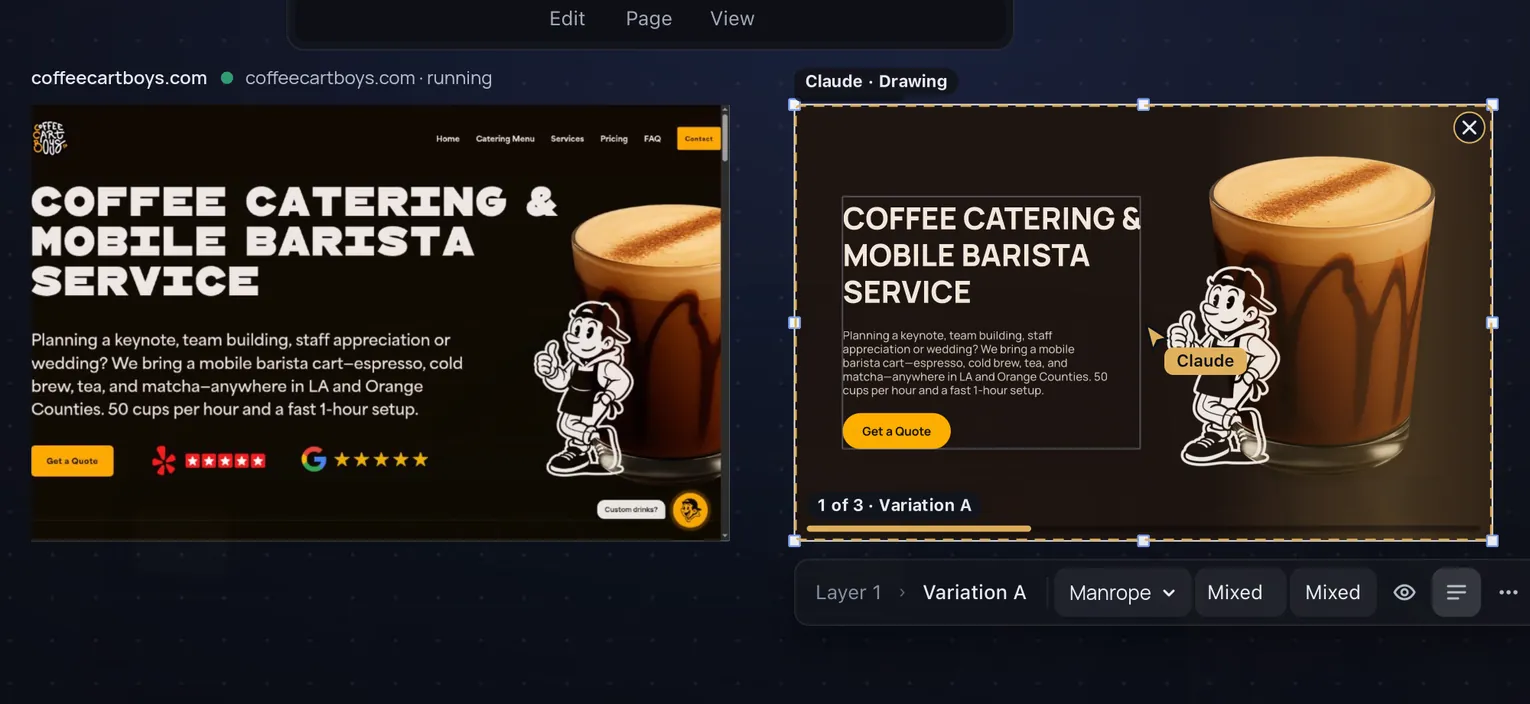
The agent's cursor, tagged Claude, works in the first variation.
The agent works in your file

With a default agent set in Omarchy

Agitate

Neither kind of tool feels right

AI-first tools do not feel like design tools. Established apps add AI on top of manual tools.

Solution

A real design tool with agents at its core

On Omarchy, Omastrator starts your default agent for you, already connected. No MCP setup. No settings.

Agent
Variation A, a design the agent drew as real frames and layers.
You
The Text tool caret in the headline of Variation A, where the designer types new words.

Features

Variations

Ask for three variations

Three directions in the time of one sketch.
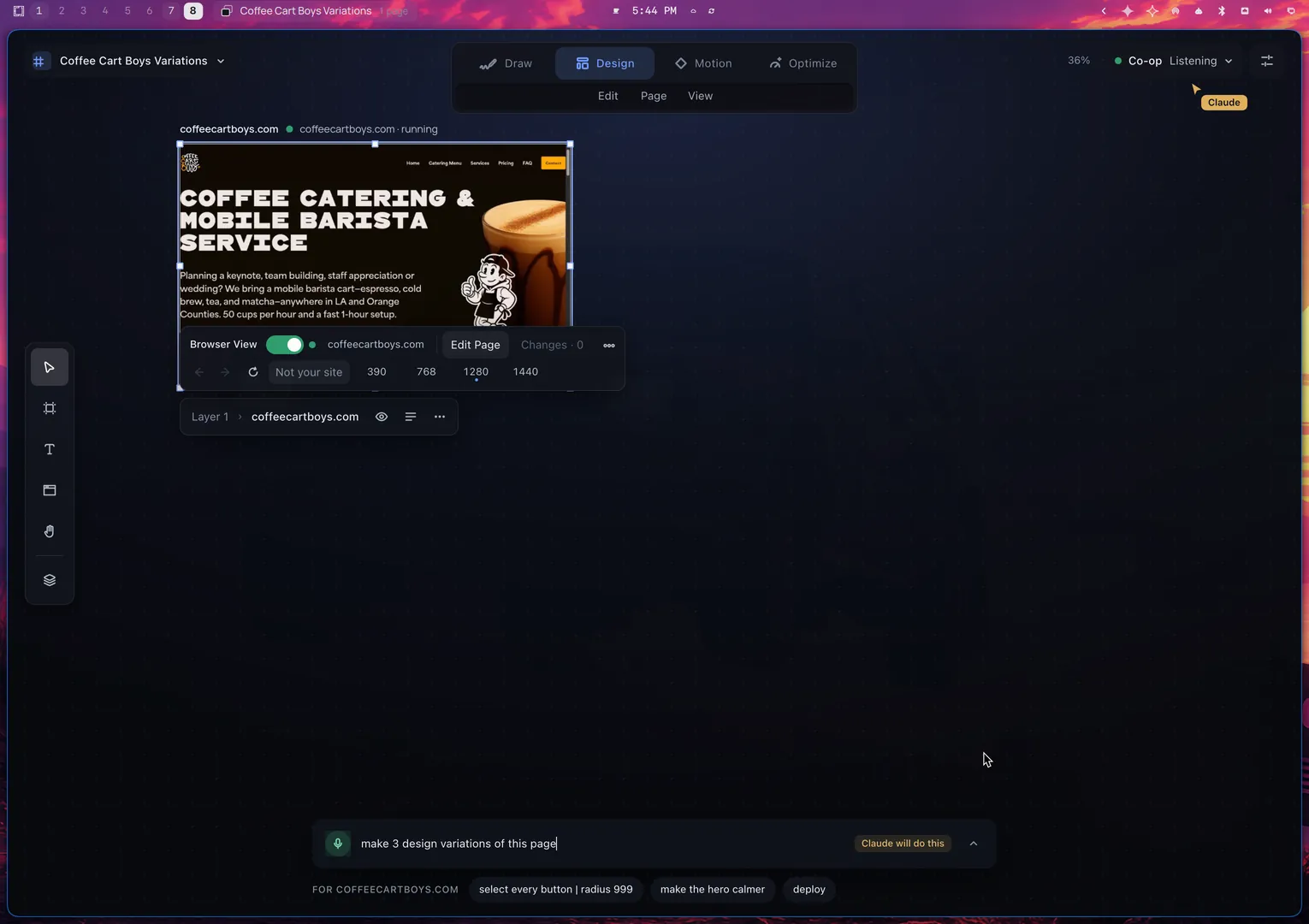
The live site frame is selected. The command bar shows the request: make 3 design variations of this page.
The agent's cursor, tagged Claude, works beside the live frame while the first variation appears.
The live site frame and three finished design variations side by side.
Edit

Edit what the agent made

Real text and named layers.

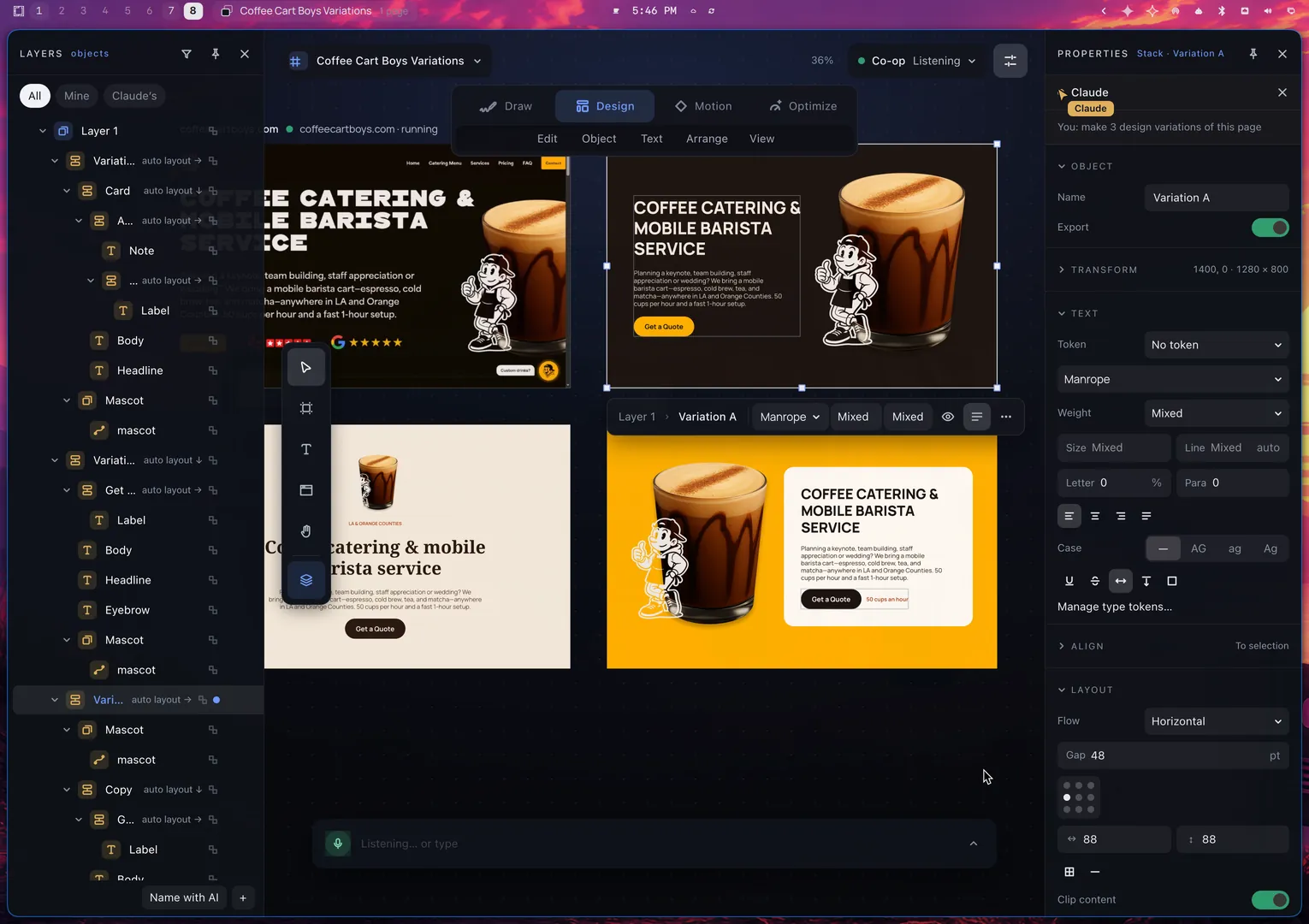
The Layers panel lists the layers of the three variations by name. Variation A is selected, with its Mascot, Copy and Label layers.
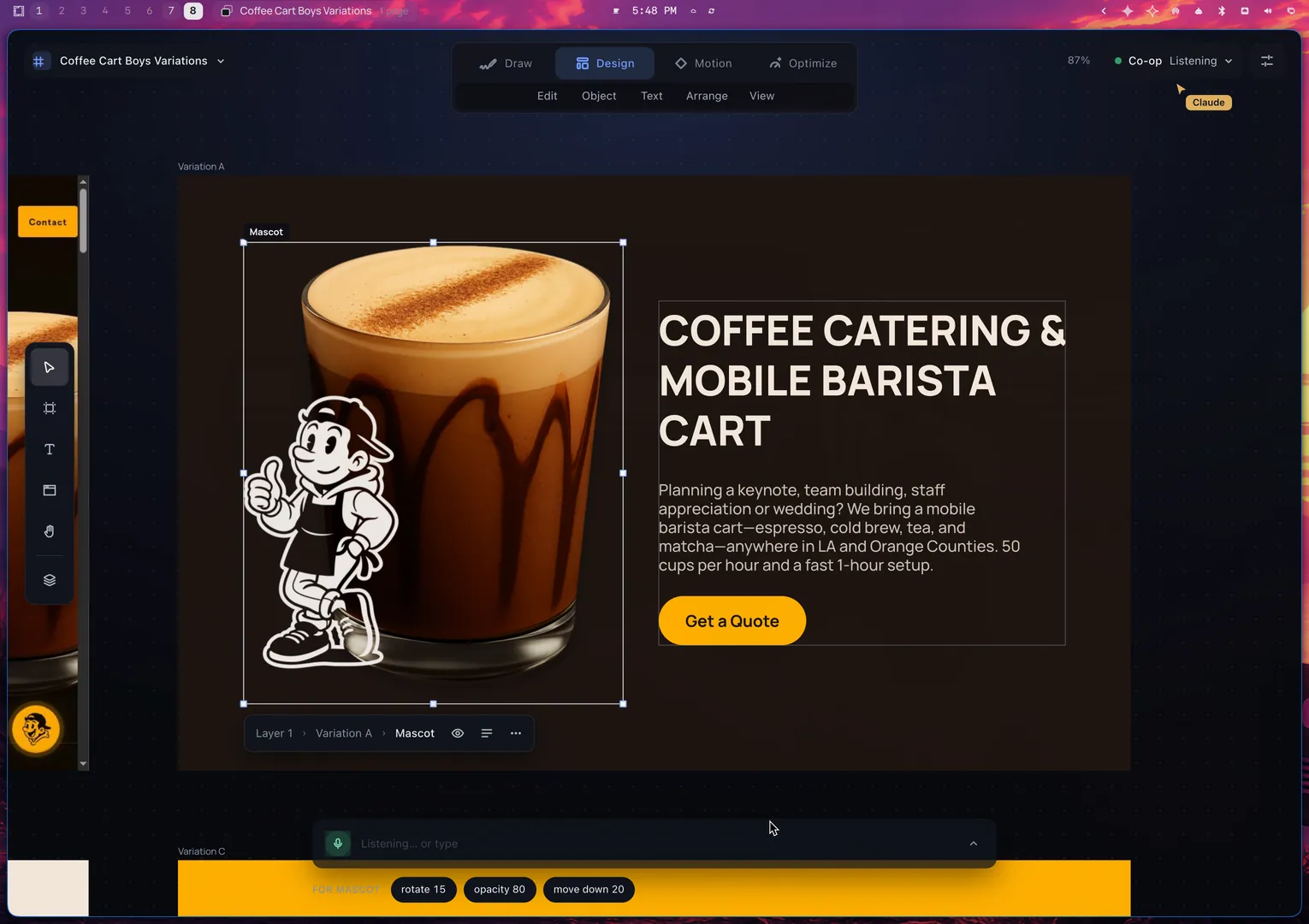
The Text tool caret in Variation A's headline. The designer has typed COFFEE CATERING & MOBILE BARISTA CART.
Result of a move: the mascot image now sits on the left of the headline, and it is selected.
Result
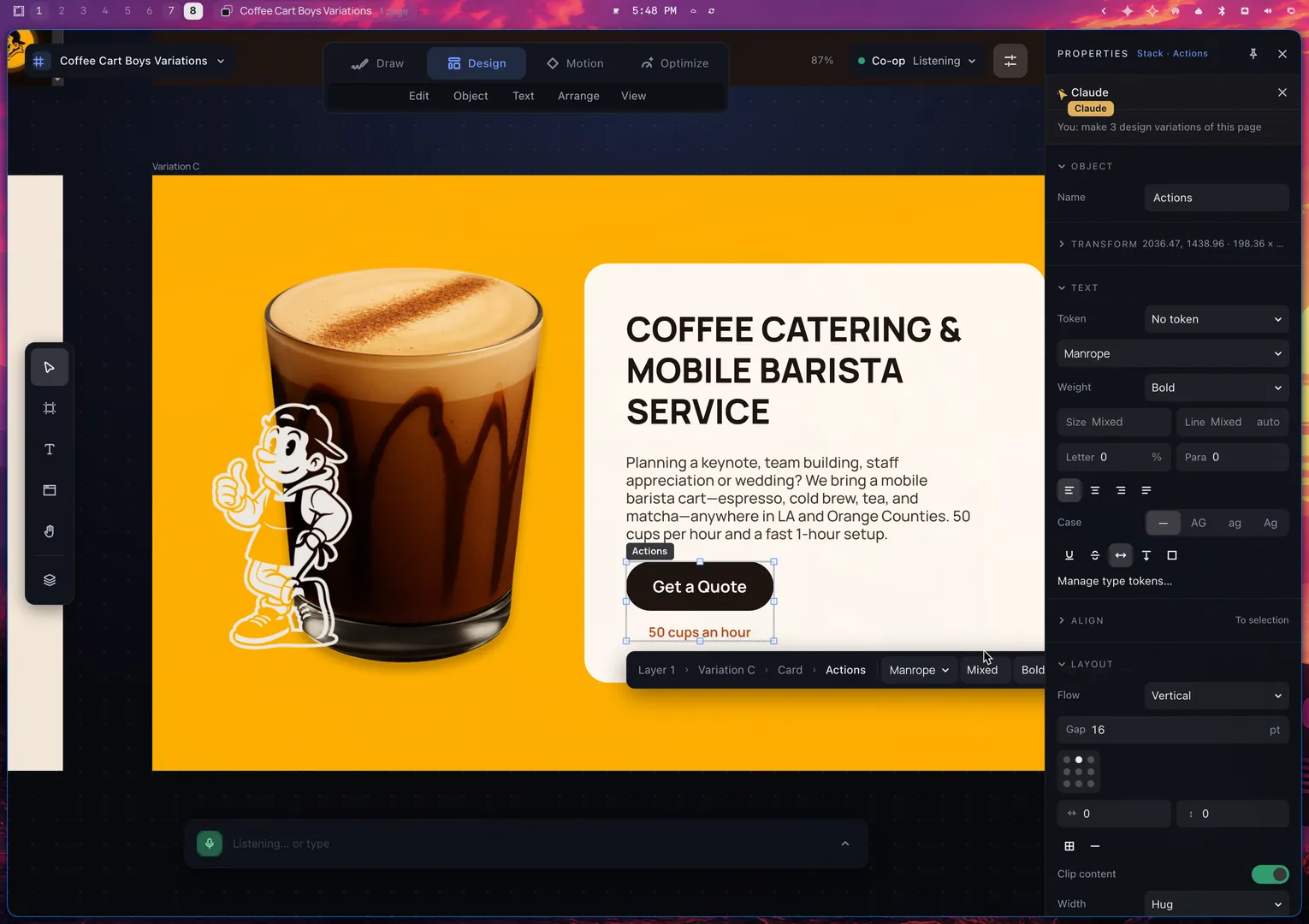
The button and the note of Variation C's action row, stacked in a frame with auto layout. The Properties panel shows Flow set to Vertical.

Proposal

You keep or drop every change

Try Enter or Esc.

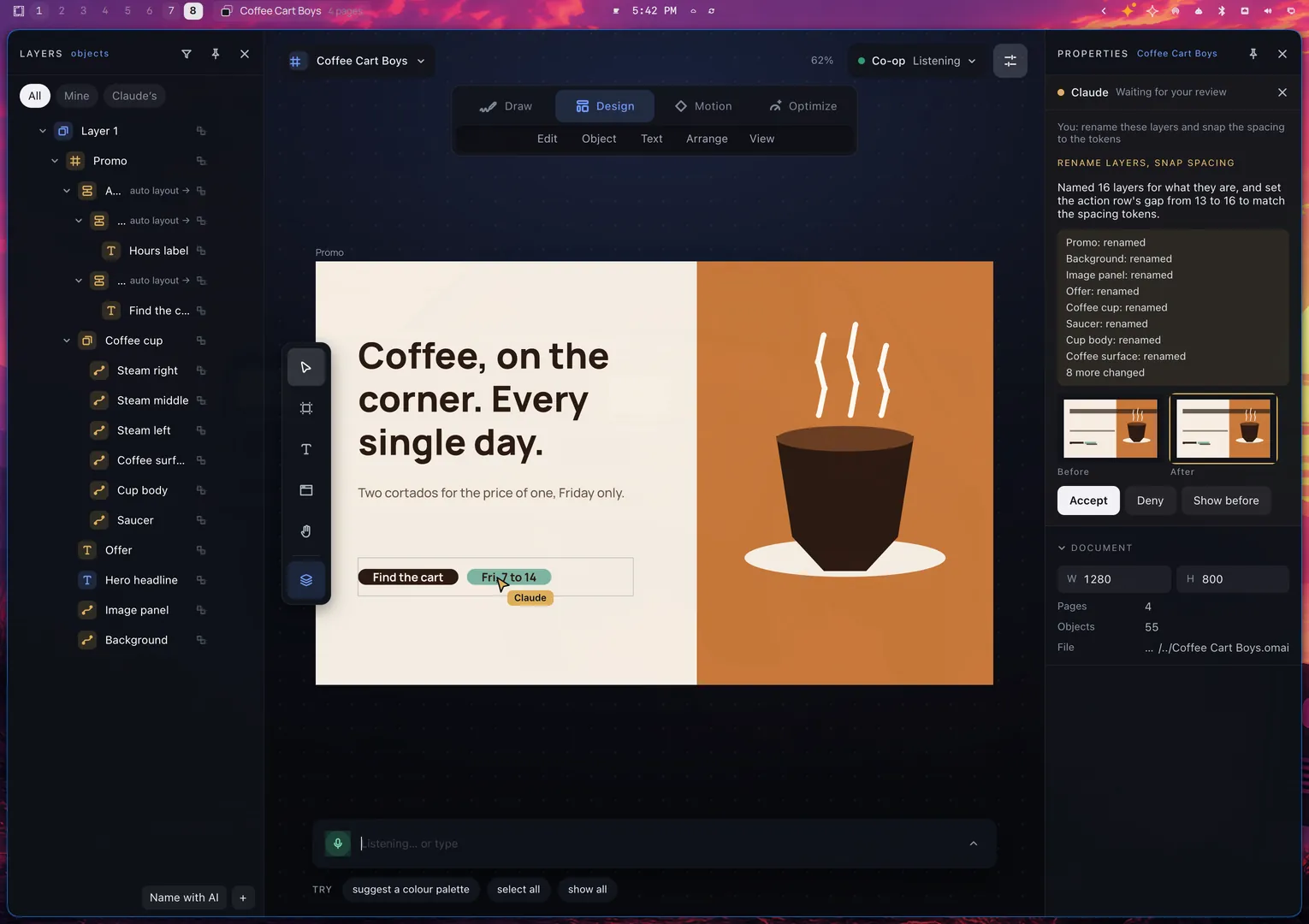
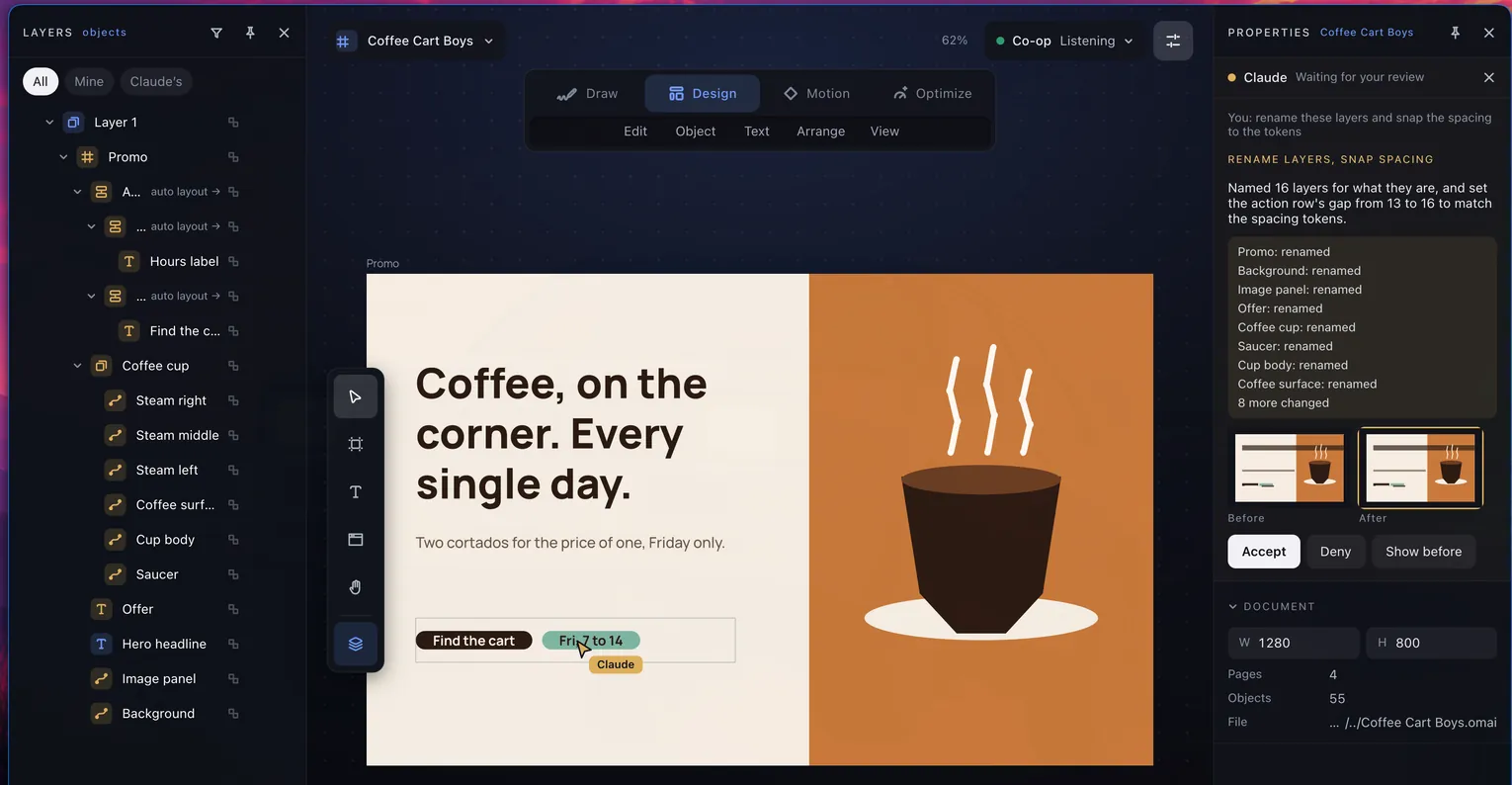
A proposal waits for review in the Properties panel: a title, a summary, the list of changes, and Accept and Deny.
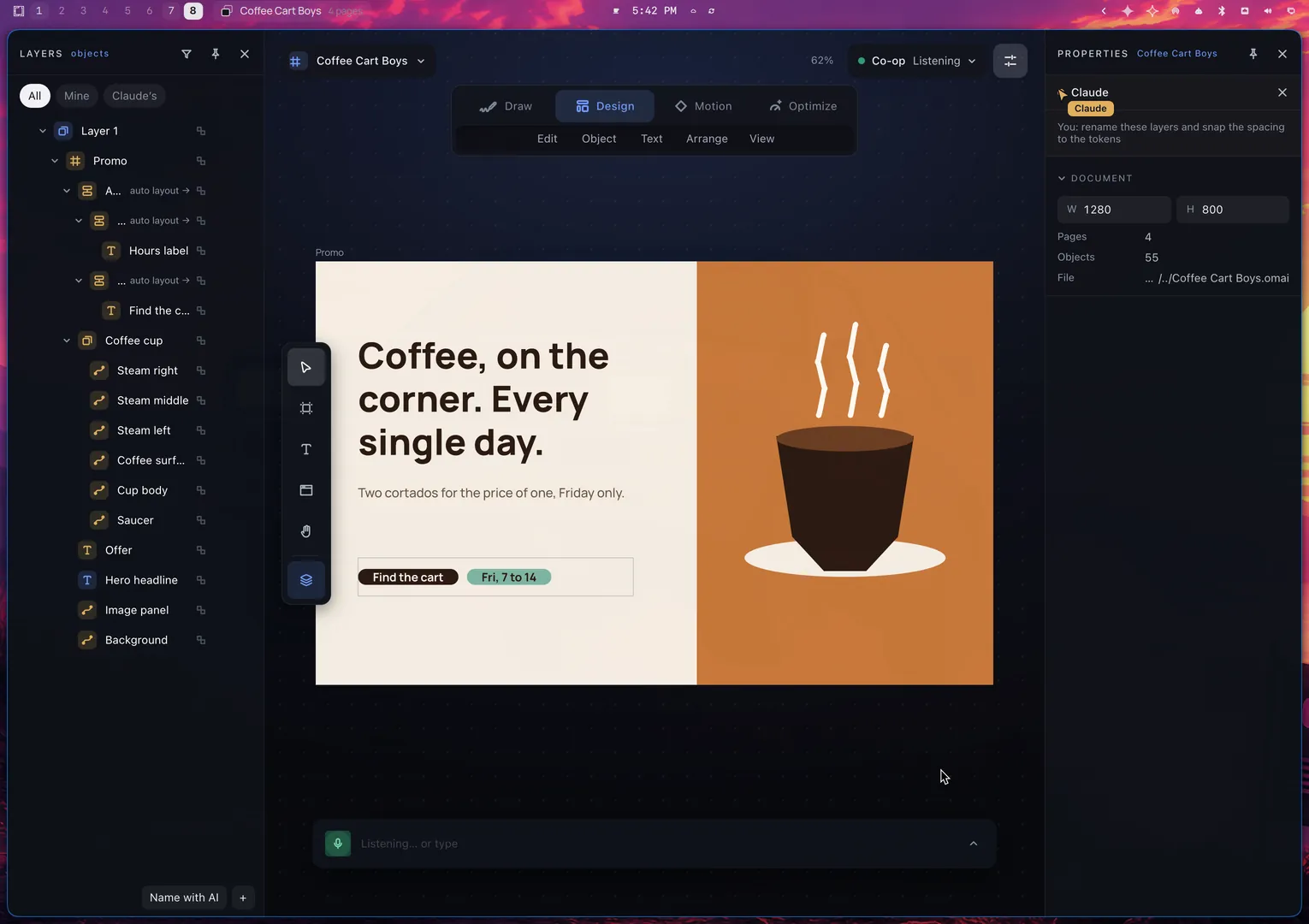
After Enter: the proposal is gone and the Layers panel shows clear names such as Promo and Coffee cup.
Kept
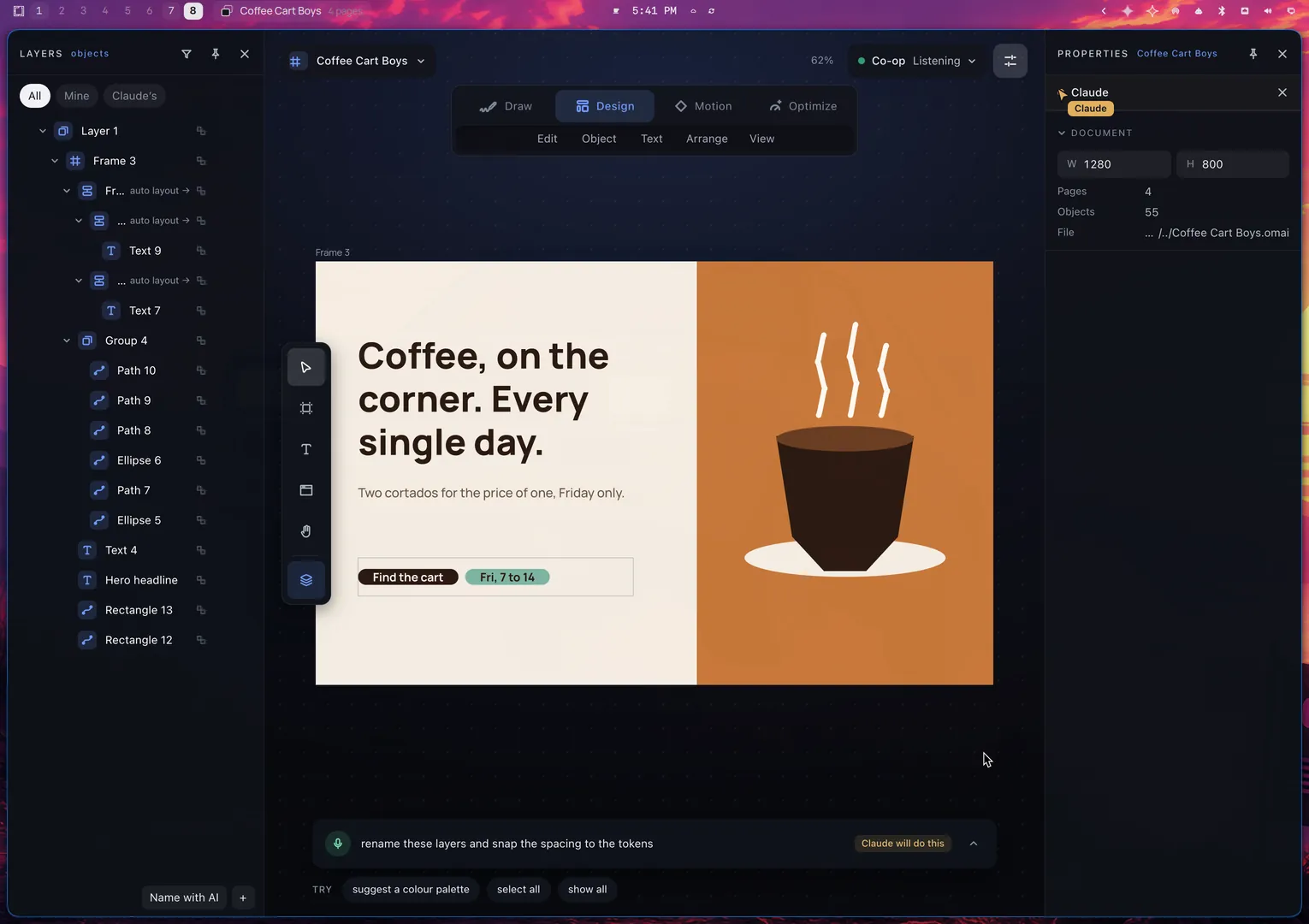
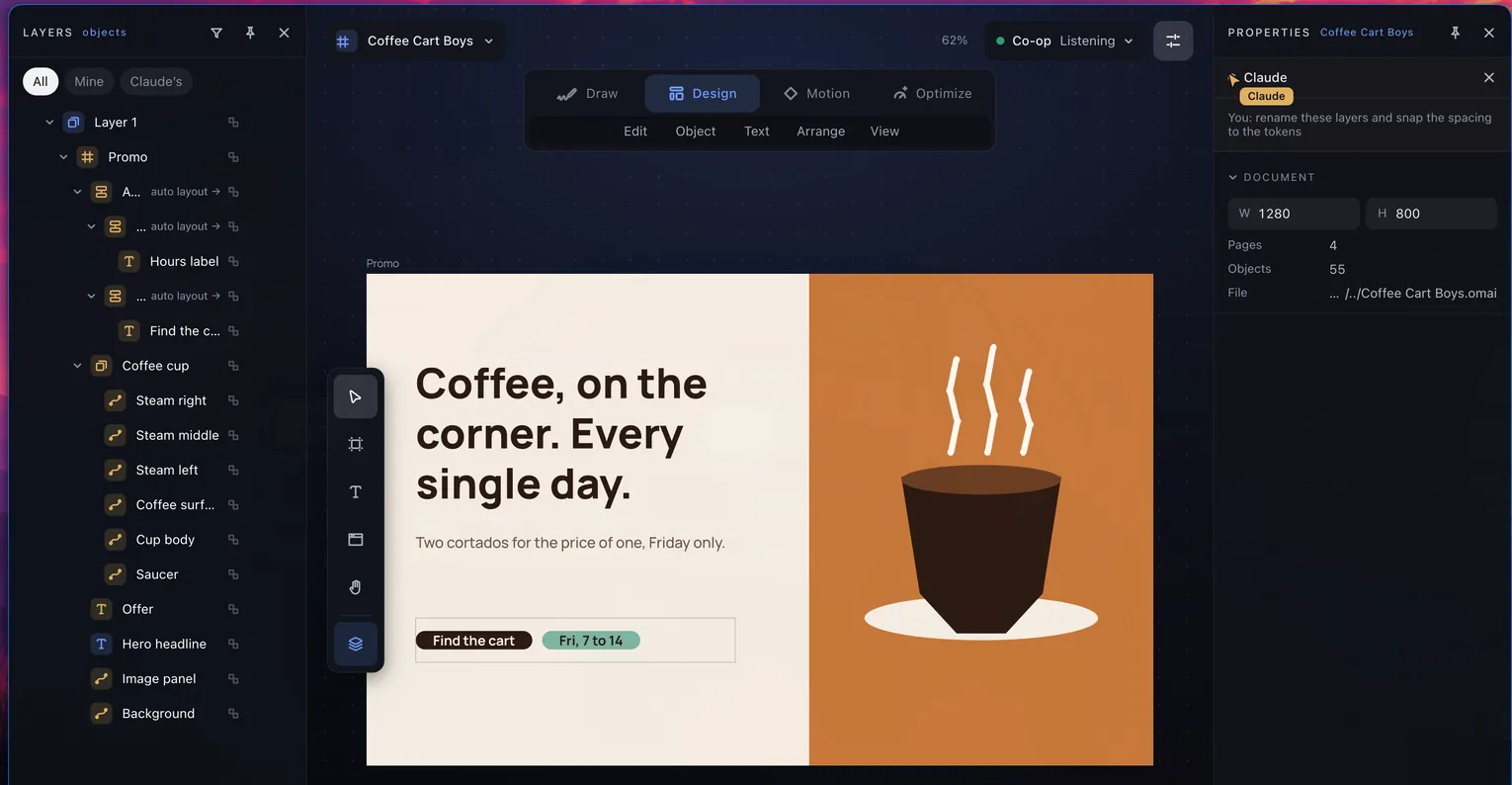
The same document before the request, with layer names such as Rectangle 12 and Group 4.
Before
Busywork

Hand off the busywork

Drag to compare.

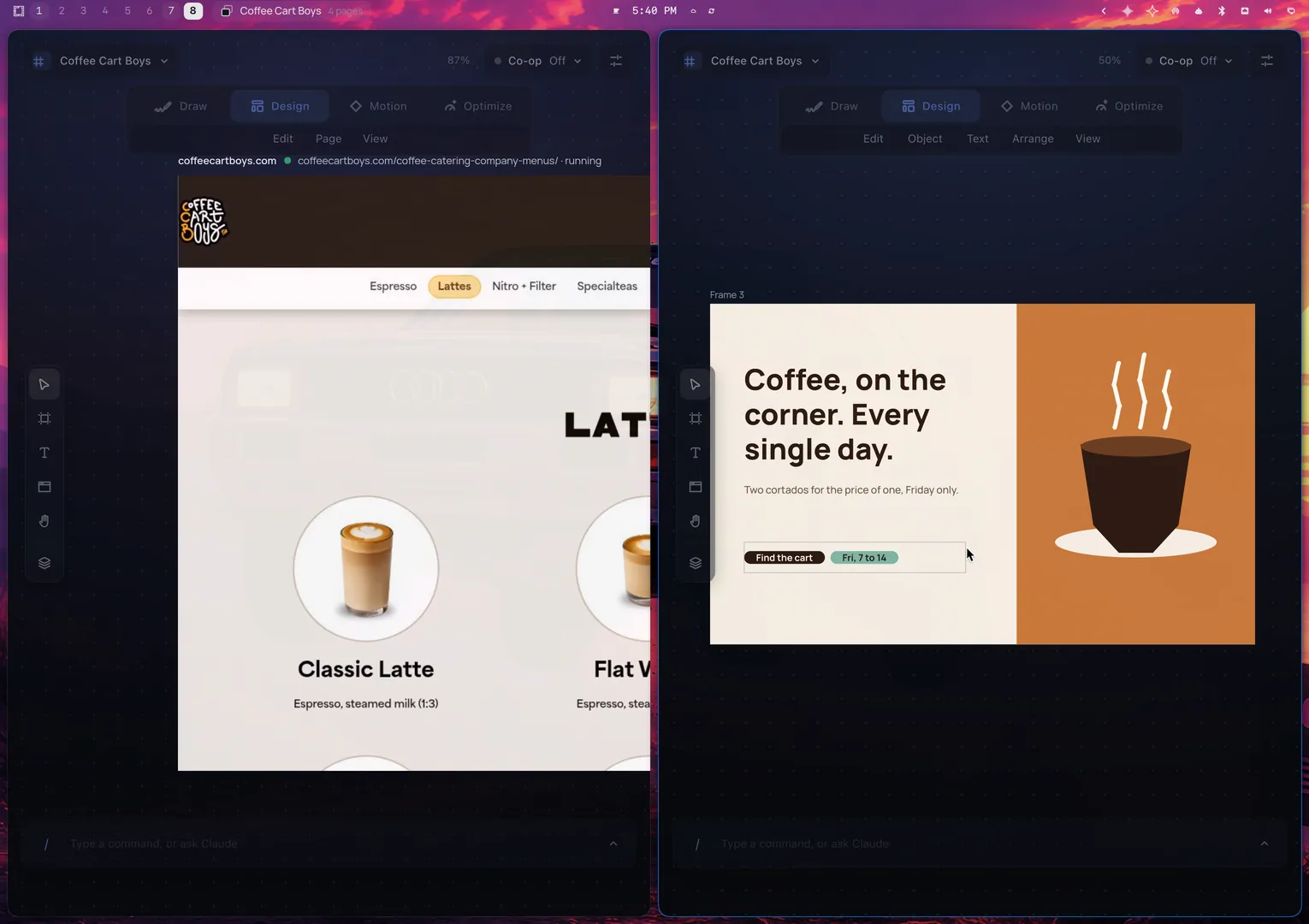
After: the Layers panel lists Promo, Coffee cup, Steam left, Hero headline and other clear names.
Before: the Layers panel lists names such as Frame 3, Group 4, Path 10 and Rectangle 12.
BeforeAfter
The proposal's change list: 16 layers with clear names and one spacing fix.
16 renames
The flyer's headline and cup illustration, the same as before.
Unchanged
Browser View

Real sites in live frames

Drag the width.

1 · Draw
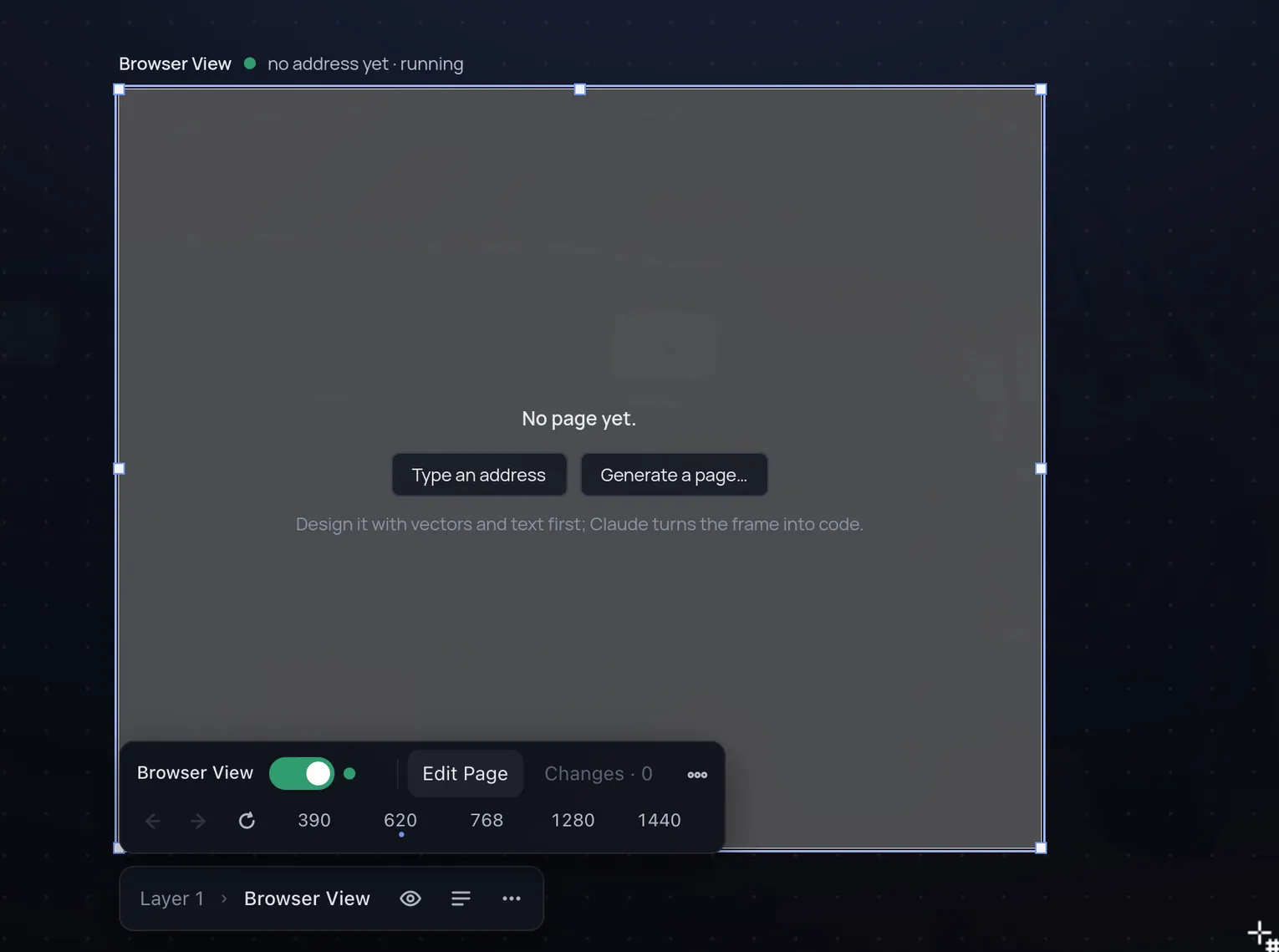
The Browser View tool draws a rectangle on an empty canvas.
2 · Address
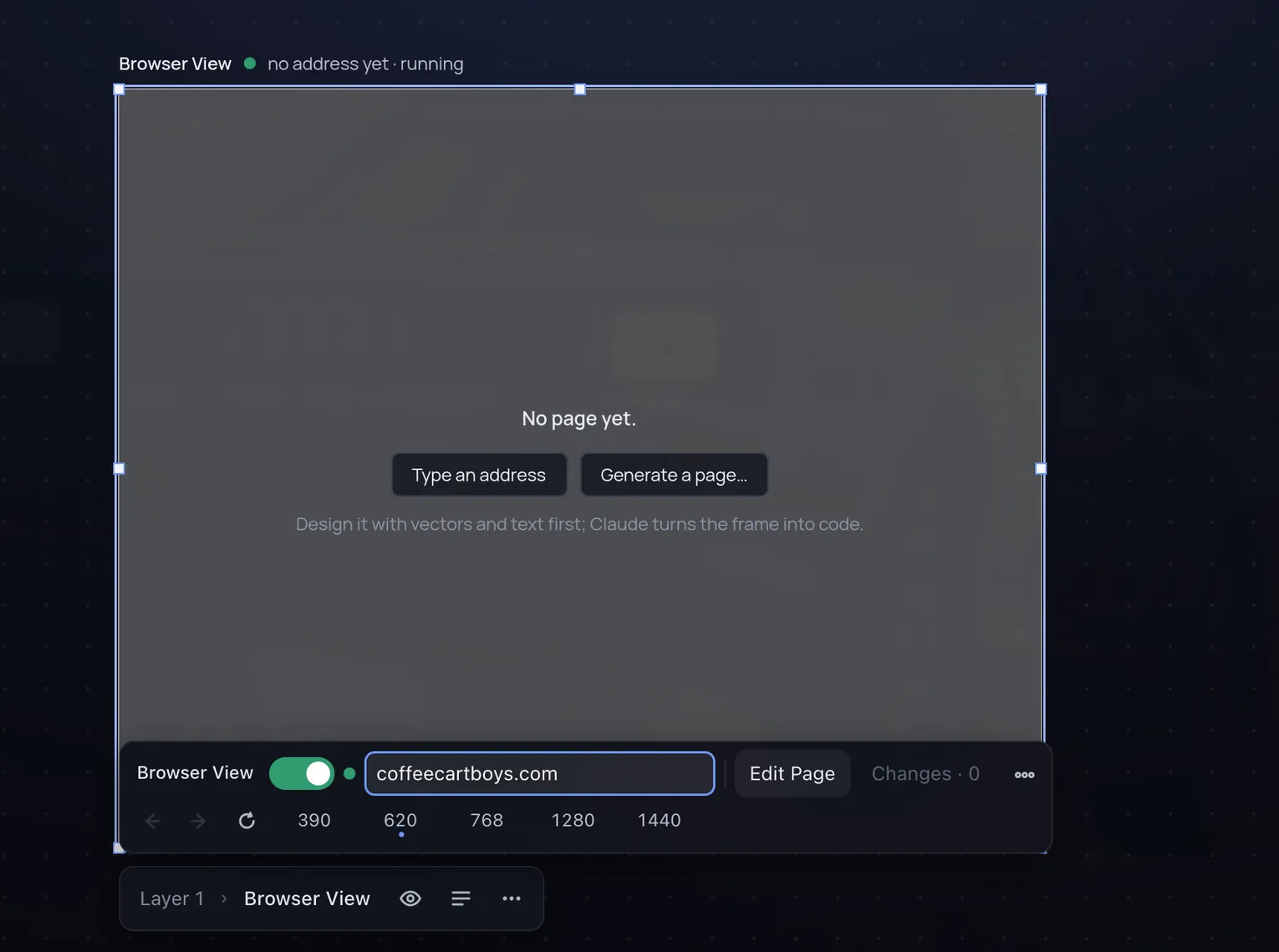
The new frame's address field with coffeecartboys.com typed in it.
1280 px
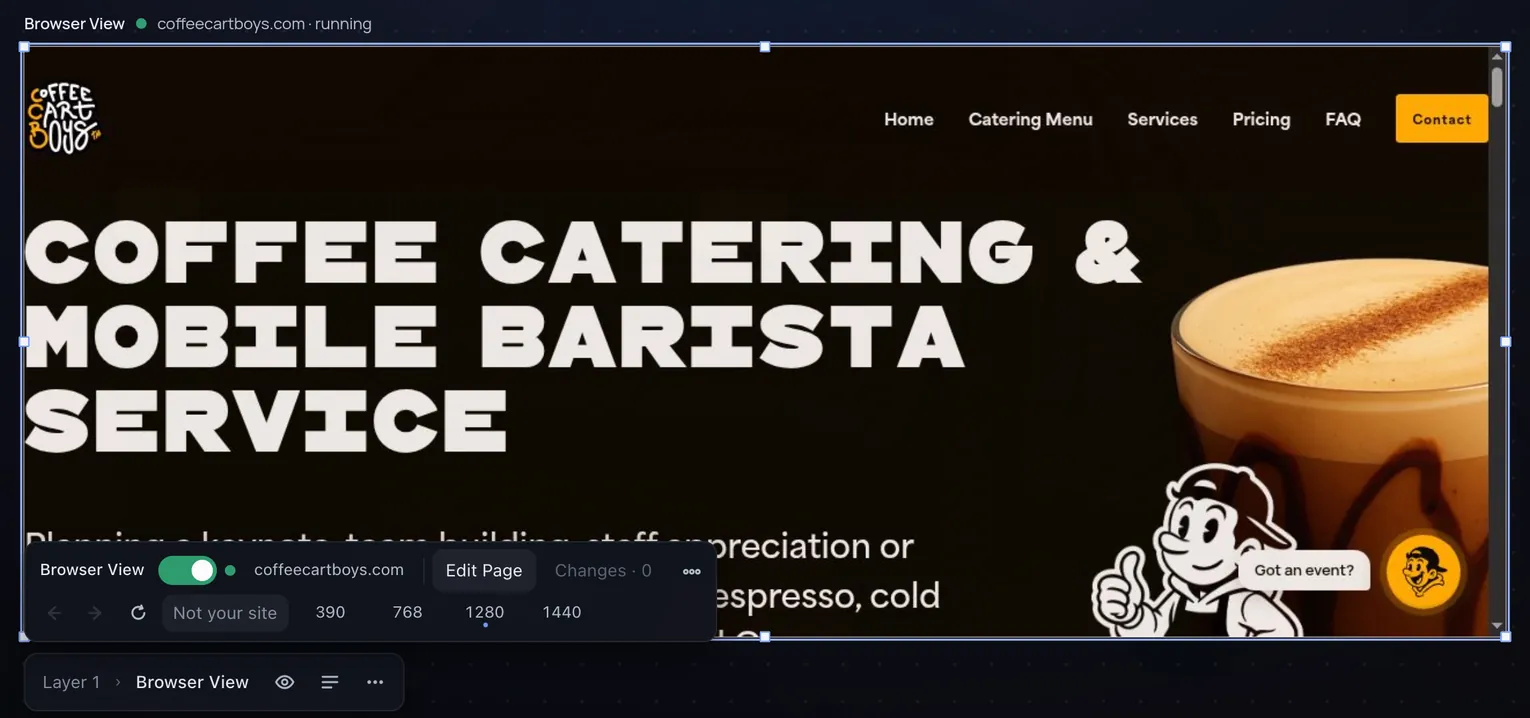
The site at 1280 pixels: the desktop layout with the full navigation and a wide headline.
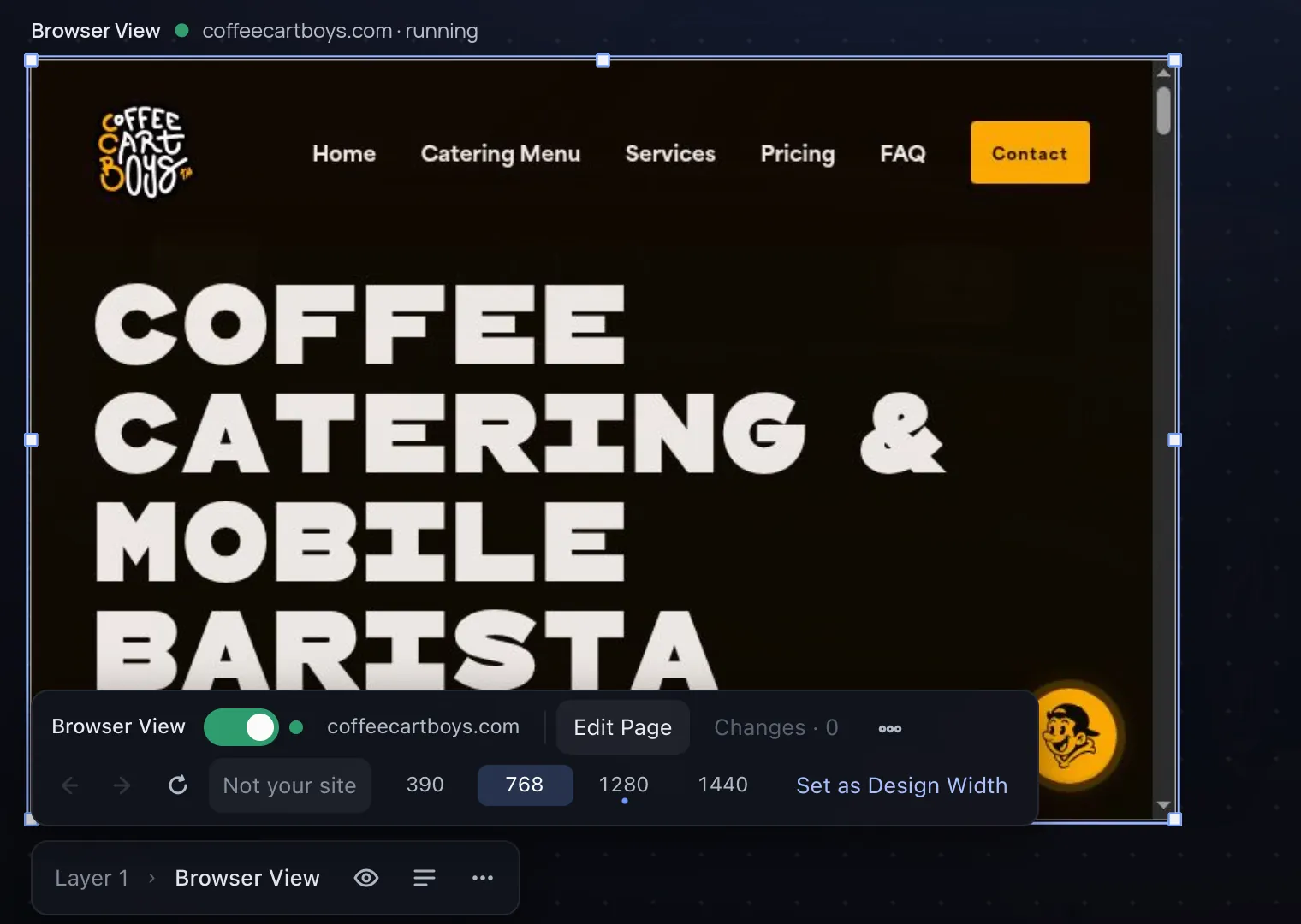
The same site at 768 pixels: the tablet layout. The navigation links stay and the headline stacks to four lines.
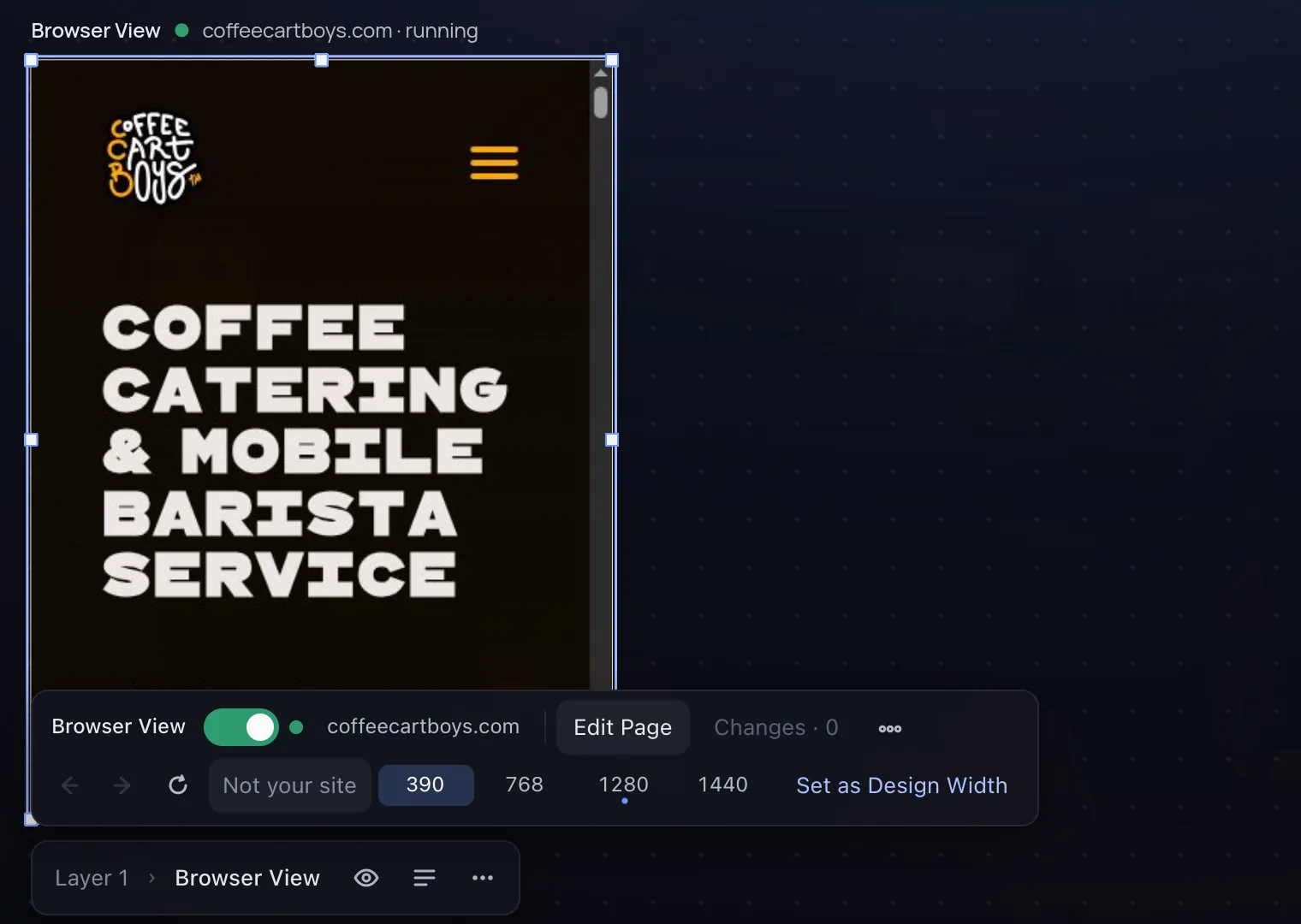
The same site at 390 pixels: the phone layout with a menu button and a stacked headline.
The pointer rests on the underlined Catering Menu link in the live site.
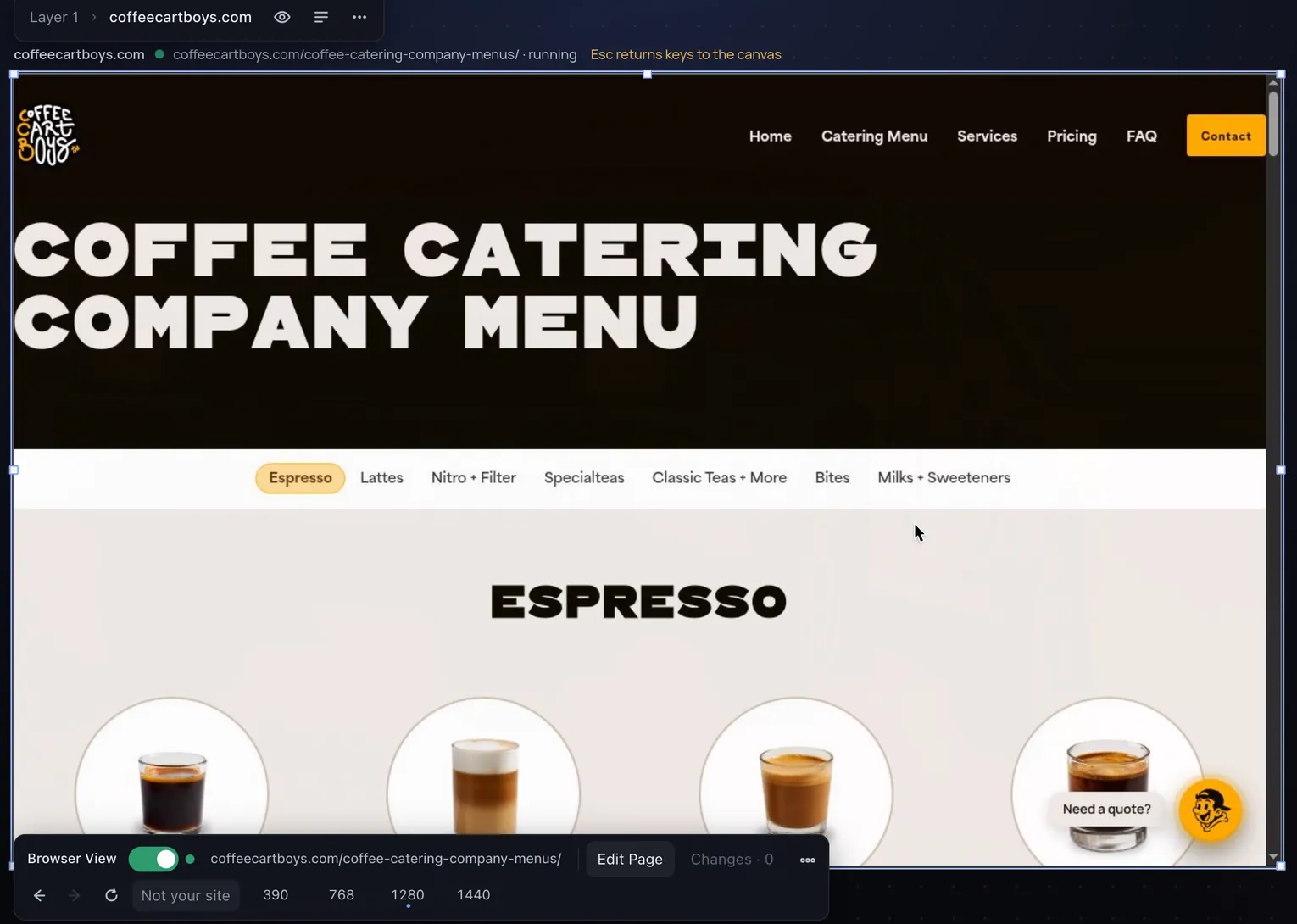
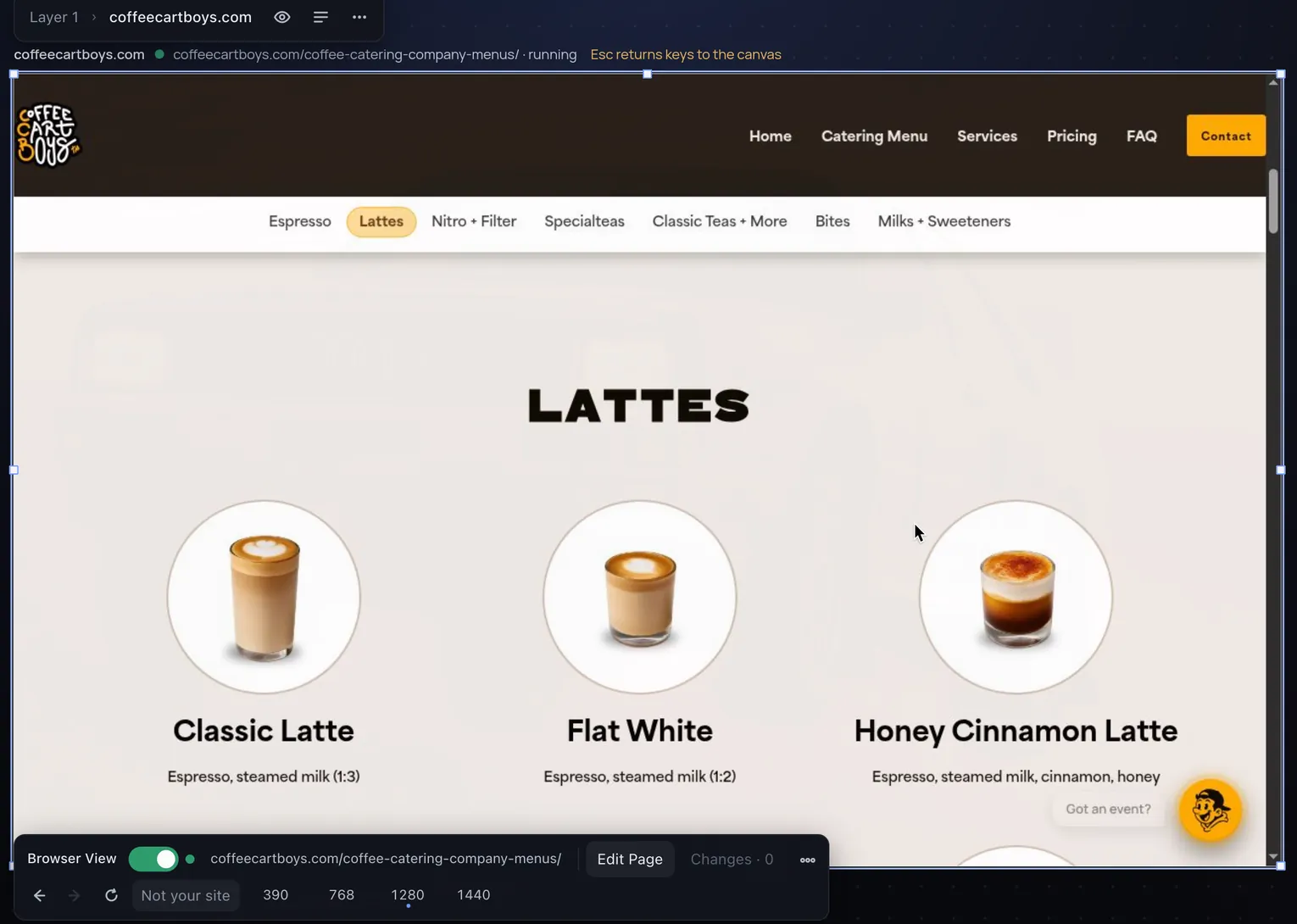
After the click, the frame shows the site's catering menu page.
After the click
The same page after scrolling: the Lattes section.
Scrolled
Pages

Pages in the Omarchy bar

Hover the bar.

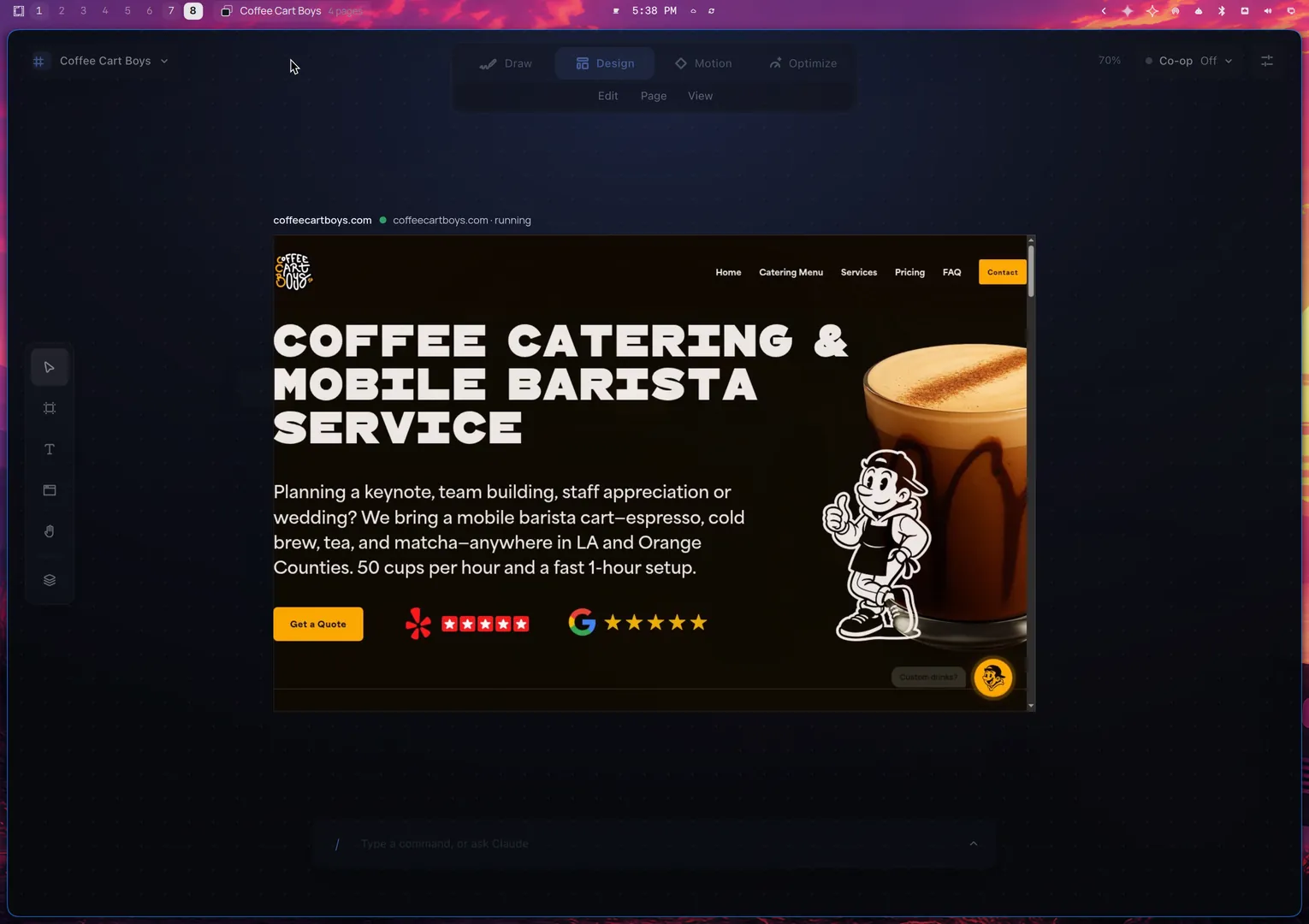
The Omarchy bar with the Omastrator pages entry, above the Omastrator window.
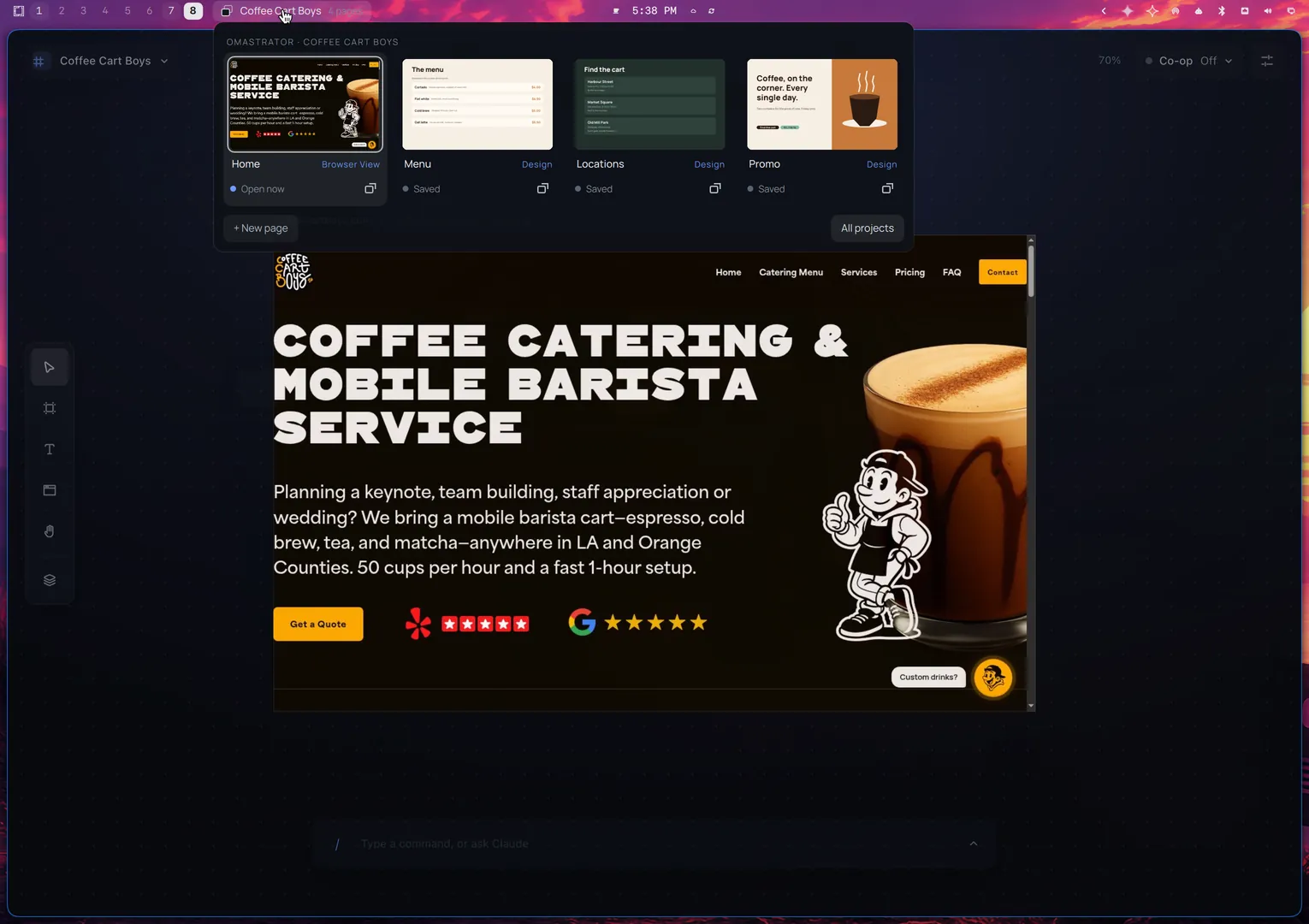
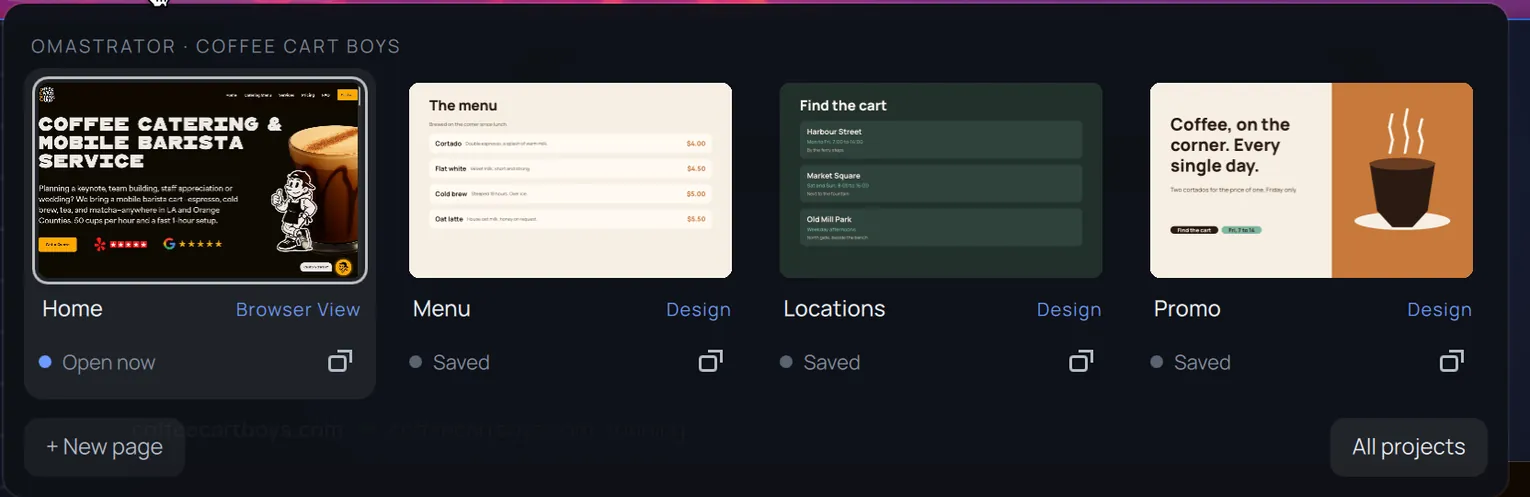
The pages popup under the bar: four pages with thumbnails, Home, Menu, Locations and Promo.
Two windows side by side: the Menu page in the main window and the Promo page in its own window.
Own window
  • Rename
  • Delete with Undo
  • Reorder
  • Right-click menu
Omarchy

Built into Omarchy

Open it from the menu.

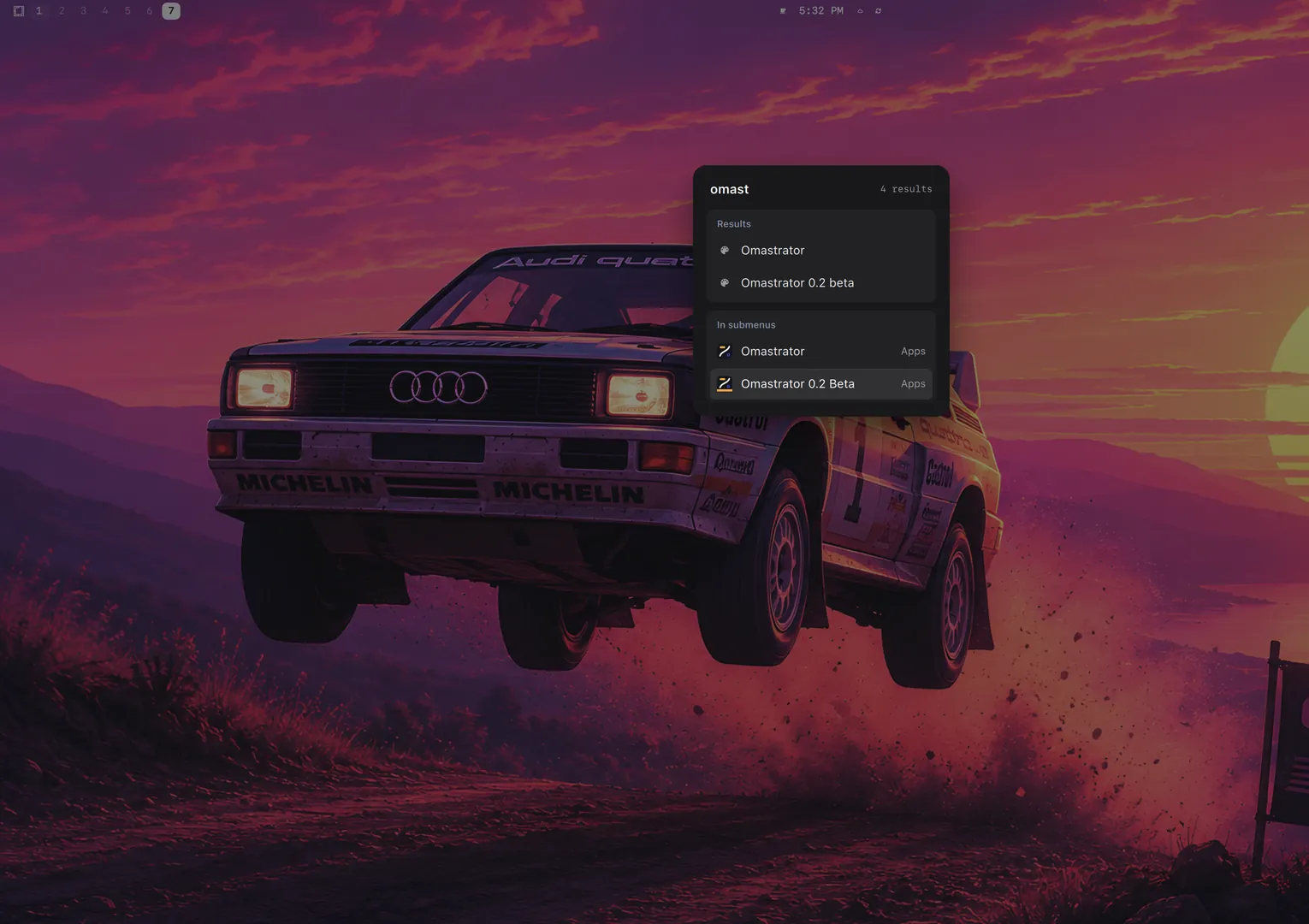
The Omarchy menu with omast typed and Omastrator 0.2 Beta highlighted.
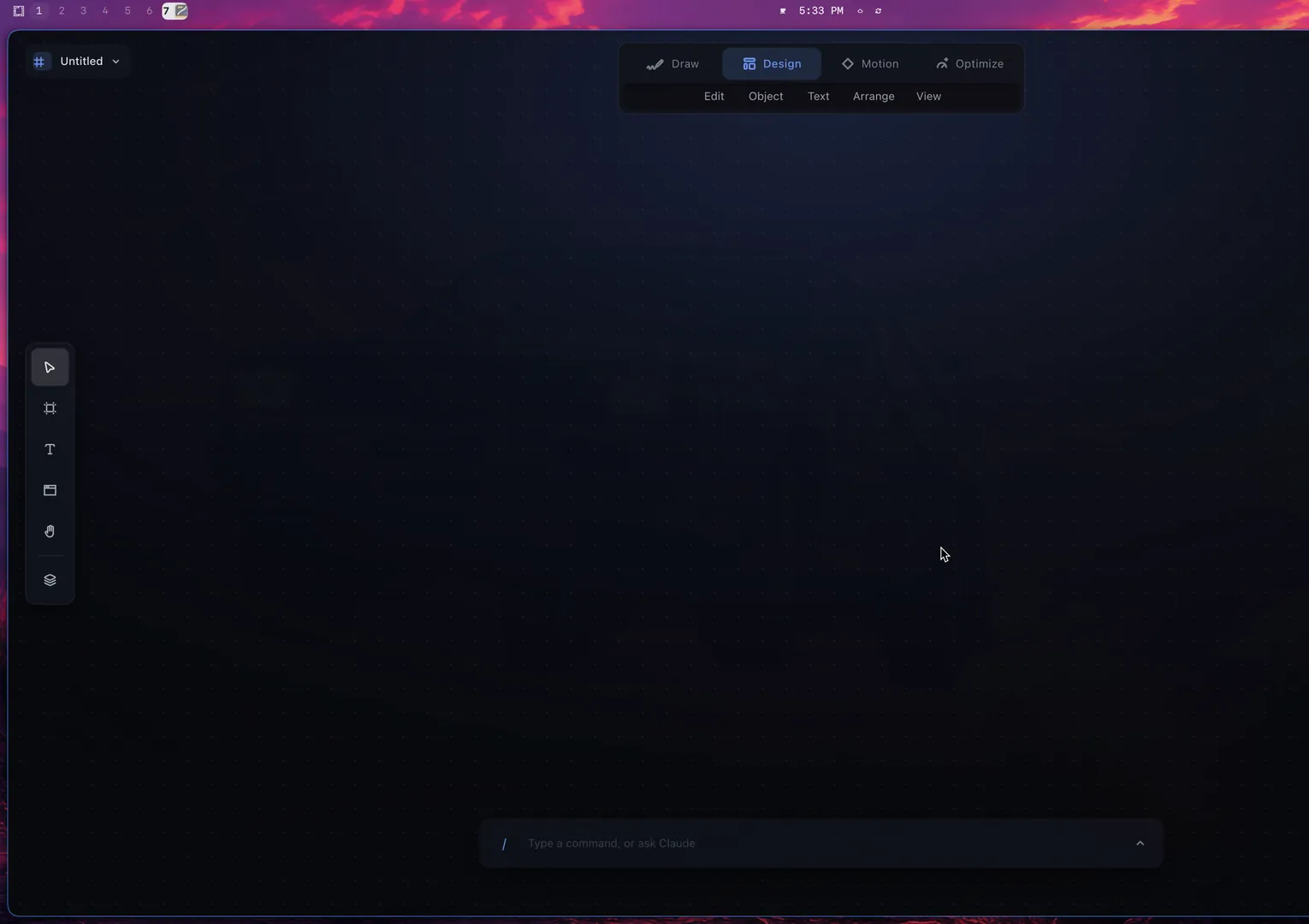
The Omastrator window fades in over the desktop background.
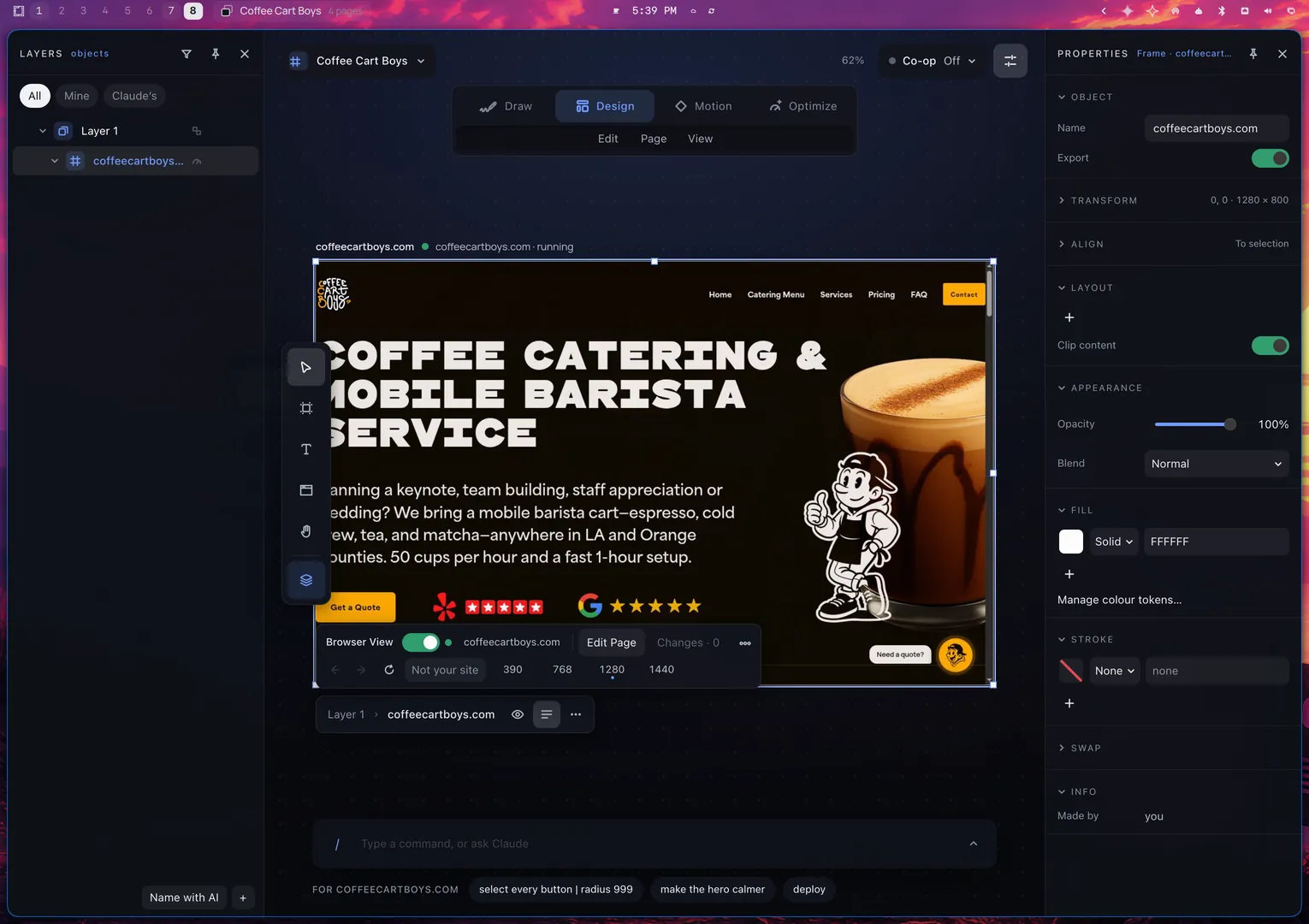
Omastrator in Design mode: a live frame selected, the tool dock, Layers on the left and Properties on the right.

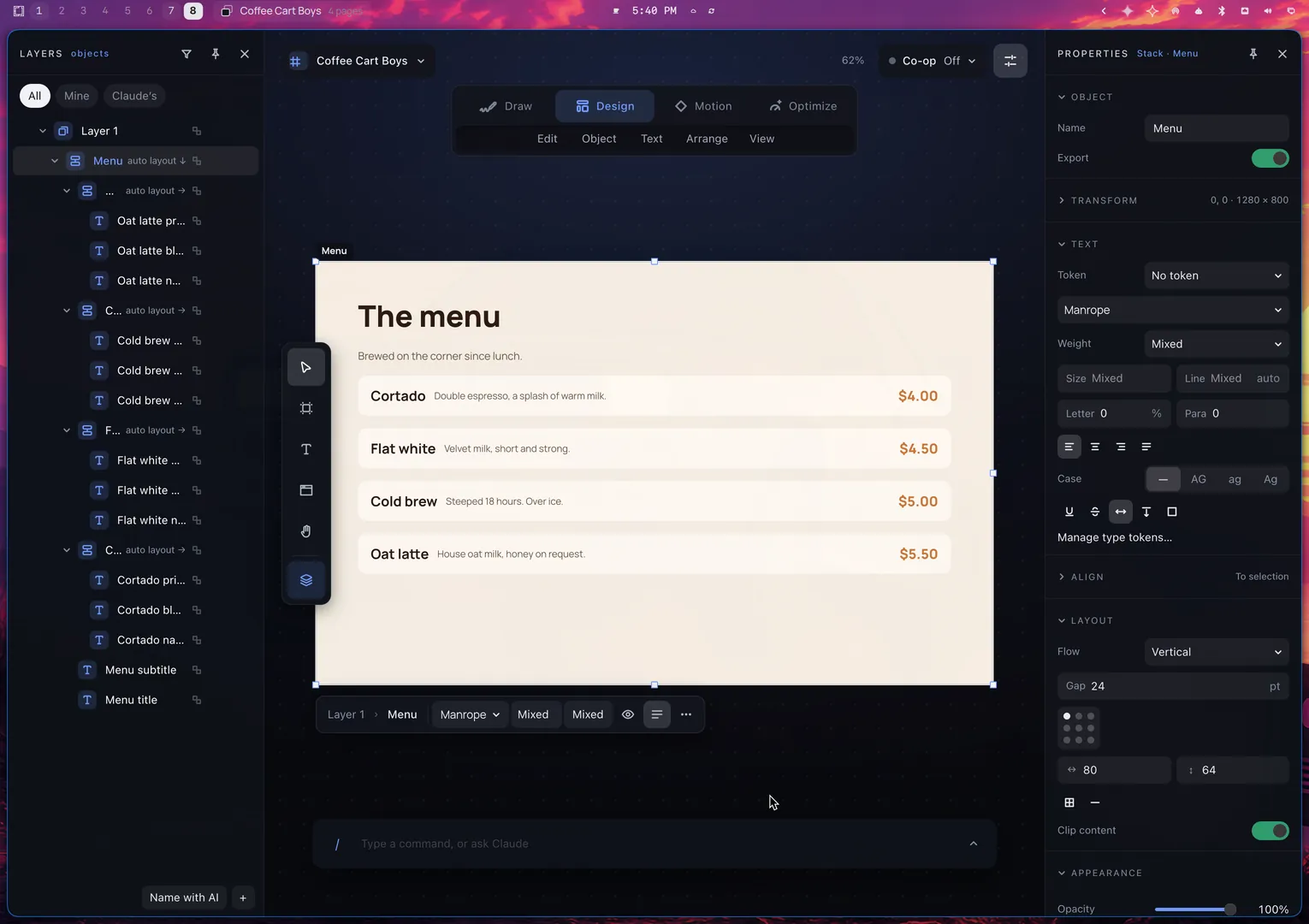
The Menu page: an auto layout frame is selected. Layers shows auto layout tags; Properties shows Flow Vertical and Gap 24.
  • Frames
FAQ

Questions

Is it finished?

No. Version 0.2.3 is a beta. It installs as omastrator-beta next to 0.1. The two do not change each other's files.

Do I need Omarchy?

You need Arch Linux with pacman. Omarchy adds the bar pages and the menu entry, and starts your agent already connected. Without it, run claude mcp add omastrator -- omastrator-beta --mcp.

Which machines?

x86_64 and aarch64.

Which agents?

On Omarchy, the app starts your default agent for you, already connected: Claude Code, Codex, OpenCode or Gemini CLI, with the model you set in it. No MCP setup. No settings. Set a default agent in Omarchy first (Setup → Default → Agent); other agents open in a terminal. Manual setup is optional: omastrator-beta setup connects Claude Code or Gemini CLI sessions outside the app. For Codex or OpenCode, add omastrator-beta --mcp by hand.

What about privacy?

Your files stay on your computer. The app needs no account, sends no usage data, and goes online only for a Browser View site or a deploy you start. Your agent sends what it reads to its model provider.

How do I report a problem or an idea?

In the app, open the project menu and choose Report an issue or idea… You can also use the buttons in Feedback.

What does it cost?

The beta is free. Agent use counts against your agent plan.

Install

Install the beta

One line in a terminal.

curl -fsSL https://get.seanireton.com/omastrator | bash
Then
omastrator-beta setup

Read the script x86_64 package SHA-256 aarch64 package SHA-256

The script checks the SHA-256 sum and installs with pacman. Direct download: sudo pacman -U <file>

0.2.3 beta 5

The Omarchy menu with Omastrator 0.2 Beta highlighted.
Then open it here

Feedback

Tell us what breaks.

Or what works, or what you want next.

In the app Project menu → Report an issue or idea…

Your agent writes the report. You read it. Nothing goes to GitHub until you press Send.

Opens GitHub. Issues are public.

Omastrator is made by one person. Support it on GitHub Sponsors →
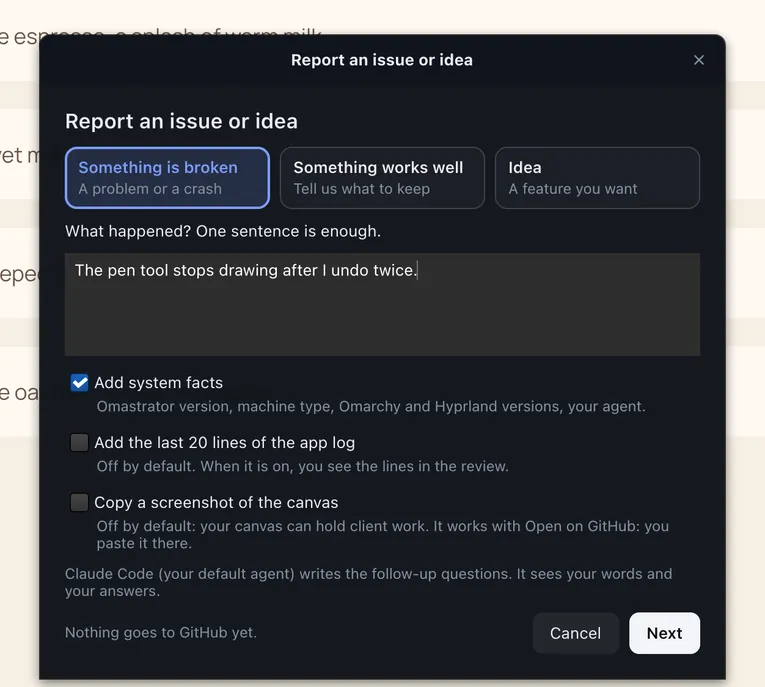
The Report an issue or idea window in Omastrator: three choices (Something is broken, Something works well, Idea), a text box with one sentence, and a note that nothing goes to GitHub yet.